
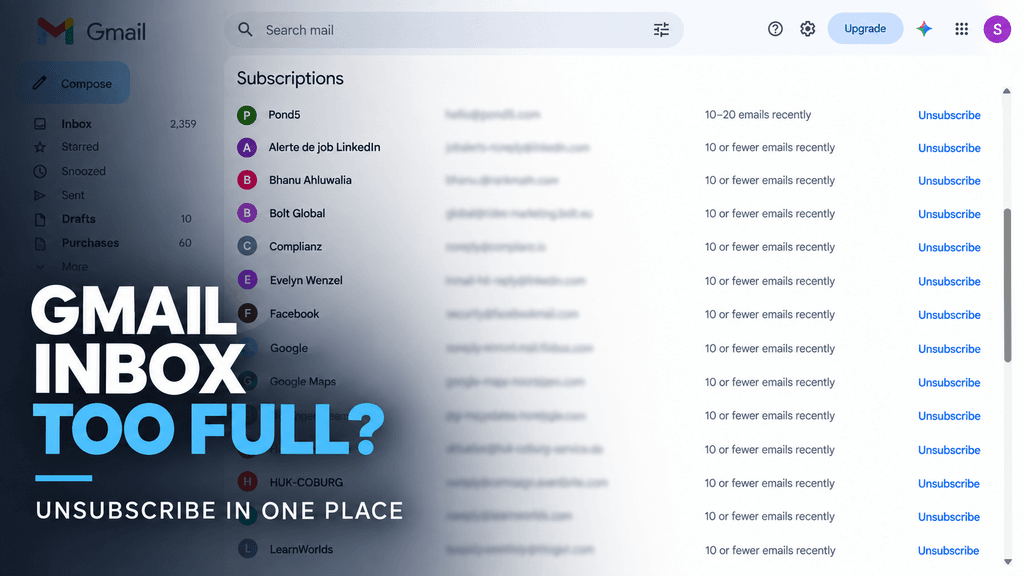
Gmail’s “Manage subscriptions” feature puts your active mailing-list subscriptions in one place and sorts them by frequent senders. From there, you can open all emails from a sender or unsubscribe without searching through your inbox manually.
In the screenshot above, Gmail is already showing senders such as LinkedIn, Facebook, Google, Hostinger and others, along with how many emails they have sent recently and an Unsubscribe button on the right.
That makes this one of the easiest ways to clean up a crowded Gmail inbox.
Where to find Manage subscriptions in Gmail
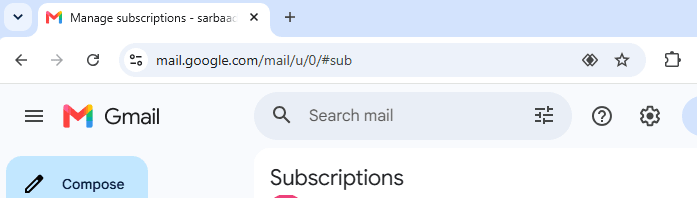
On desktop:
- Open Gmail.
- In the left sidebar, click More.
- Select Manage subscriptions.
- Gmail shows active subscription senders in one list.
- Click Unsubscribe next to the sender you no longer want.
Google says the feature is also available on Android and iPhone/iPad, though it is still being rolled out gradually.
What the list actually shows
Gmail groups subscription senders and displays how frequently they have emailed you recently.
Google says the feature is designed to surface your active subscription emails, including promotional messages and newsletters, so you can quickly identify the senders filling your inbox.
In practice, this makes it easier to spot:
- Newsletters you forgot about
- Job alerts
- Marketing emails
- Shopping promotions
- Travel offers
- Service updates
- Old website subscriptions
This is much faster than opening individual emails and looking for a tiny unsubscribe link at the bottom.
What happens when you click Unsubscribe?
When you unsubscribe through Manage subscriptions, Gmail sends an unsubscribe request to the sender on your behalf.
Google also says that when you unsubscribe from a sender in this view, Gmail attempts to remove you from all active mailing lists associated with that sender.
However, it may take a few days before the sender fully stops sending messages.
That means seeing another email shortly after unsubscribing does not necessarily mean the feature failed.
Unsubscribe is not the same as Block
This distinction is important.
If you unsubscribe, Gmail asks the sender to remove you from its mailing list.
If you block the sender, Gmail does not necessarily remove you from the list. Instead, future emails from that sender are sent to Spam.
So for legitimate newsletters you simply no longer want:
Use Unsubscribe.
For suspicious or abusive senders:
Block or report spam instead.
Why some senders open a website
Read also : Claude Text Watermark: Can AI-Written Text Really Be Detected?
Not every mailing list supports Gmail’s direct unsubscribe system.
Google says some senders may require you to visit their website. In that case Gmail displays Go to website instead of completing the process directly.
This is normal.
It does not automatically mean the email is suspicious.
Still, check the website address before entering any password or personal information.
Why you might not see “Manage subscriptions”
Google says the feature is still being rolled out gradually, so it may not yet be available to every Gmail account.
If you do not see it:
- Check More in the left Gmail sidebar
- Update the Gmail mobile app
- Try Gmail on desktop
- Try again later if your account has not received the feature yet
You can still unsubscribe the old way.
Open a newsletter and click Unsubscribe next to the sender name at the top of the email.
Read also : ChatGPT vs Claude vs Perplexity for Research: Which One Should You Use?
Can Gmail unsubscribe from multiple senders at once?
Not as a single bulk action.
The Manage subscriptions page centralizes your subscriptions, but you still click Unsubscribe for individual senders.
That is probably intentional because users may want to keep certain newsletters while removing others.
The main improvement is that Gmail puts the decision in one clean list instead of forcing you to search through messages individually.
A useful inbox-cleanup strategy
If you have thousands of emails, do not try to clean everything manually.
Start with the senders Gmail shows as the most frequent.
For example:
- Open Manage subscriptions.
- Look at the senders with the highest recent email counts.
- Open the sender if you are unsure what it sends.
- Unsubscribe from the ones you no longer need.
- Repeat once a month.
This can reduce inbox noise quickly without deleting important receipts, security alerts or personal emails.
Be careful with important notification emails
AI Cyberattacks Are Getting More Dangerous: 7 Ways to Protect Yourself
Not every recurring email should be removed.
Before unsubscribing, check whether the sender also sends:
- Account security alerts
- Banking information
- Purchase confirmations
- Password resets
- Delivery notifications
- Important service notices
Google separates true subscription messages from transactional emails such as receipts, password resets and one-time passwords, but it is still worth reviewing the sender before unsubscribing.
Does Gmail automatically stop all newsletters?
No.
The feature gives you control over subscriptions, but Gmail does not automatically remove every newsletter.
You decide which senders to unsubscribe from.
Google’s goal is to make the process easier and reduce inbox clutter while still leaving the decision with the user.
Bottom line
Gmail’s Manage subscriptions feature is a simple but very useful inbox-cleanup tool.
Instead of hunting through individual emails for unsubscribe links, you can see active mailing-list senders in one place, check how often they email you and unsubscribe directly.
For users with crowded inboxes, this is probably one of Gmail’s most useful cleanup features.
The only limitation is availability: Google is still rolling it out, so some accounts may not see it yet.
Sources
Google — Manage your subscriptions in Gmail
Google Gmail Help
Google — Gmail launches Manage subscriptions
Google Blog announcement
Google — Unsubscribe from an email
Google Gmail unsubscribe help
Google — Email subscription guidelines
Google sender guidelines

Pingback: Gemini “Something Went Wrong (13)” Error: 7 Fixes
Pingback: Apple Mail Microsoft 365 not syncing? 7 Fixes