
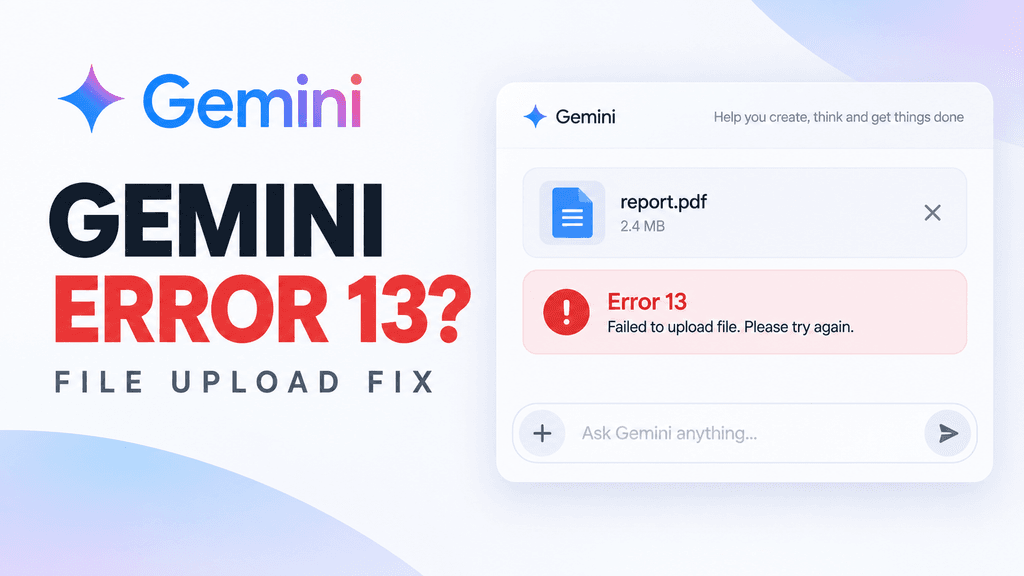
If Gemini shows “Something went wrong (13),” there is no single officially documented cause. Recent Gemini Community reports show the error appearing during file uploads, in specific long-running conversations, and sometimes even with normal text prompts. The fastest way to diagnose it is to test a new chat without an attachment, then work through browser, file and account checks in that order.
That distinction matters because Error 13 is not always a file-upload problem.
Some users can send normal text but not attachments. Others report that only one older chat is affected while new chats work normally.
What does Gemini Error 13 mean?
Google does not appear to provide a public technical definition for “Something went wrong (13)” in its official Gemini help documentation.
Gemini Community threads suggest several possible patterns:
- Temporary backend or session failure
- Problem with one specific conversation
- Attachment or upload failure
- Browser cache or extension conflict
- Connection interruption
- Persistent account-side issue
Because these explanations come from community product experts rather than a formal Google engineering document, they should be treated as troubleshooting clues rather than confirmed root causes.
Fix 1: Start a new chat first
This is the fastest test.
If Error 13 appears only inside one conversation, open a new Gemini chat and send a simple text prompt such as:
“What is 2 + 2?”
If the new chat works, the problem is probably isolated to the original conversation rather than your entire account.
Multiple Gemini Community reports describe Error 13 affecting one heavily used or older thread while new conversations continue working normally.
If that happens, copy any important information from the old chat and continue in a fresh conversation.
Fix 2: Test Gemini without the attachment
If Error 13 appears when uploading a PDF, image or other file, send the same prompt without the file attached.
If text works but the attachment fails, you have narrowed the problem to the upload path.
One community report describes exactly this pattern: normal chat entries worked, but prompts containing attachments returned Error 13 across multiple devices.
That is much more useful diagnostically than immediately clearing your entire browser.
Fix 3: Try one very small supported file
Next, test a simple file.
Use:
- One small PDF
- One JPG or PNG
- One text document
Avoid multiple files at first.
Google currently says Gemini supports up to 10 files in one prompt, depending on availability. Most supported non-video files can be up to 100 MB each, while individual videos can be up to 2 GB.
If a 500 KB PDF works but a 90 MB PDF does not, file size or processing complexity is more likely than a general account failure.
If even a tiny supported file triggers Error 13, continue with the next steps.
Fix 4: Try Incognito or another browser
read also : How to Use Gmail’s Manage Subscriptions Feature
Open Gemini in a private or Incognito window.
On Chrome:
Ctrl + Shift + N on Windows
Cmd + Shift + N on macOS
If Gemini works there, the problem may be related to cached site data, cookies or an extension.
Gemini Community product experts frequently recommend Incognito as a quick way to separate browser-state problems from account-side failures.
If Incognito works, try disabling:
- Ad blockers
- Privacy extensions
- VPN browser extensions
- Script blockers
- Other AI extensions
Do not reset the entire browser unless simpler tests fail.
Read Also : What Is Gemini Spark? Google’s AI Agent Explained
Intune Sign-In Fails on iOS 27: Tested Workaround for Personal iPhones
Fix 5: Sign out and refresh the session
Sign out of your Google account completely, close the Gemini tab, then sign back in.
This forces Gemini to create a fresh authenticated session.
Several community troubleshooting replies recommend this step for Error 13 because a stale or broken session can sometimes cause repeated request failures.
After signing back in, test:
- A new chat
- A text-only prompt
- One small attachment
That sequence tells you much more than retrying the same failing action repeatedly.
Fix 6: Try another device or network
Use the same Google account on another device.
For example:
- Desktop → phone
- Chrome → Firefox or Edge
- Wi-Fi → mobile data
- Home network → hotspot
If Error 13 disappears on the second device, your original browser or network becomes the main suspect.
If it follows the same account across multiple devices and networks, the issue is more likely account-side or backend-side.
Some users have reported Error 13 persisting across multiple devices, Wi-Fi networks, mobile data and Incognito mode.
At that point, repeatedly clearing cache is unlikely to be useful.
Fix 7: Check whether only long or heavily used chats fail
There is another pattern worth testing.
Some 2026 community reports describe Error 13 occurring only in conversations that had been used for months, while new chats worked normally.
That may indicate the conversation itself has become difficult for Gemini to process or has hit an internal backend problem.
Google has not publicly confirmed that Error 13 specifically means a context-limit failure, so do not treat that explanation as established fact.
But if:
- One old chat fails
- New chats work
- Different browsers behave the same way
then continuing in a new conversation is the safest practical workaround.
What if Error 13 only happens with files?
Then check Google’s normal upload requirements before assuming there is a system outage.
Google currently documents these general limits:
| Upload type | Current documented limit |
|---|---|
| Files per prompt | Up to 10 |
| Non-video file size | Up to 100 MB each |
| Video file size | Up to 2 GB |
| ZIP file size | Up to 100 MB |
| Files inside ZIP | Up to 10 |
| Code folder / GitHub repo | Up to 5,000 files / 100 MB |
If your file is within those limits and Error 13 still appears with every attachment, test a different device and account session before changing the file itself.
Should you clear cache and cookies?
Yes, but not as your first move.
Cache clearing is useful when:
- Incognito works
- Only one browser fails
- The interface behaves strangely
- Upload buttons do not respond normally
But if the same error follows your account across multiple devices, browsers and networks, local cache is probably not the main cause.
That is why the diagnostic order matters.
What if nothing works?
If Error 13 persists after:
- Starting a new chat
- Testing without attachments
- Testing a tiny supported file
- Using Incognito
- Signing out and back in
- Trying another device
- Trying another network
submit feedback directly from Gemini.
Community product experts recommend including:
- The exact text “Something went wrong (13)”
- Approximate time of failure
- Whether files were attached
- Whether new chats work
- Whether multiple devices were tested
- A screenshot
- System logs if Gemini offers the option
This gives Google a much better chance of diagnosing an account-side or backend problem.
Quick troubleshooting checklist
Use this order:
- Start a new chat.
- Test a text-only prompt.
- Upload one very small file.
- Try Incognito.
- Sign out and back in.
- Test another device or network.
- If only one old chat fails, move to a new conversation.
- If everything fails, send feedback to Google.
This approach avoids deleting data or changing settings unnecessarily.
Bottom line
Gemini Error 13 is not tied to one confirmed cause.
Recent Gemini Community reports show it appearing during attachment uploads, inside long-running conversations and during temporary browser or backend failures. Google’s official upload documentation gives file-size and file-count limits, but it does not currently provide a public definition for Error 13 itself.
The best approach is therefore diagnostic:
New chat → text only → small file → Incognito → another device.
If the same error follows your account across all of those tests, stop repeating local fixes and report it to Google.
Sources
Google — Upload and analyse files in Gemini Apps
Google Gemini file upload help
Gemini Community — Error 13 with attachments
Community report: attachments fail with Error 13
Gemini Community — Error 13 affecting one chat
Community report: one conversation fails
Gemini Community — Persistent Error 13 after multiple fixes
Community report: persistent attachment failure



Pingback: Gemini “Delete Data to Upload File” Error: 7 Fixes
Pingback: Gemini File Upload Failed? 8 Ways to Fix It
Pingback: Intune Sign-In Fails on iOS 27: Tested Workaround for Personal iPhones