
Quick answer: ChatGPT file upload failed? First check the OpenAI status page. If there is no active incident, verify the file size and upload limits, confirm that you are using the correct account, and retry with one smaller local file in a new chat. For persistent failures, check account storage, remove password protection from the document, and test without browser extensions, a VPN, or a restricted work network.
File-upload errors do not all have the same cause. A server outage, a rate limit, a full storage allowance, a damaged PDF, and a browser problem can produce similar symptoms. The fastest solution is to identify which layer is failing before repeatedly uploading the same file.
Verification note: This guide was checked against OpenAI’s current file-upload, storage, deletion, and service-status documentation on September 4, 2026. Interface labels and limits can change.
What does “ChatGPT file upload failed” mean?
The message means ChatGPT could not receive or process the file. It does not automatically mean the document is corrupted. The failure may happen before the file reaches ChatGPT, after it reaches OpenAI’s servers, or when the system tries to extract and index its contents.
| What you see | Most likely cause | First action |
|---|---|---|
| Uploads fail across several files and devices | Service incident or account limit | Check OpenAI Status |
| Only one file fails | File size, protection, corruption, or format | Open and resave the file |
| Upload stops at the same percentage | Connection, browser, or server interruption | Retry one smaller local file |
| “Upload limit reached” | Rolling rate limit or storage cap | Stop retrying and check storage |
| File uploads but cannot be analyzed | Processing, text extraction, or document structure | Create a searchable copy |
1. Check whether ChatGPT file uploads are down
Open OpenAI Status before changing browser settings or converting files. If ChatGPT or file uploads show an active incident, local troubleshooting is unlikely to solve the problem.
OpenAI has documented previous incidents that specifically affected file uploads and file processing. During a platform-side failure, the practical fix is to wait for recovery and retry later. Repeated attempts may make diagnosis harder and can sometimes count toward upload-rate limits.
2. Check the official file-size limits
A file can look small enough while still exceeding a different processing restriction. OpenAI currently lists these maximums:
- Any individual file: 512 MB
- Text and document files: 2 million tokens per file
- CSV and spreadsheet files: approximately 50 MB, depending on row size
- Images: 20 MB per image
The 512 MB ceiling is not the only limit. A long text-heavy PDF can remain below 512 MB but exceed the document token cap. A spreadsheet can fail well below 512 MB because its practical limit is much lower.
If you are close to a limit, compress the image, divide the PDF into logical sections, or save only the spreadsheet sheet and columns needed for the task. Do not split a document randomly if doing so would separate tables, footnotes, or definitions from the sections they explain.
3. Stop retrying if you see “upload limit reached”
OpenAI says upload allowances include both rolling rate limits and shared storage caps. Its current FAQ lists up to 80 files every three hours for users generally and three file uploads per day for Free users, while noting that limits may be reduced during peak periods.
Failed attempts can sometimes count toward the rolling allowance. That means uploading the same file 20 times is not a harmless test. Confirm that you are signed into the intended account and subscription, then wait for the rolling window to reset if necessary.
4. Check your ChatGPT storage
File storage is separate from the size of the document you are trying to add. OpenAI currently lists Library storage limits of 500 MB for Free, 4 GB for Go, 20 GB for Plus and Business, and 100 GB for Pro.
On the web, open Settings → Storage to review usage. You can also remove files from Library. OpenAI states that deleting a chat removes files uploaded in that conversation, while files used as custom GPT knowledge must be removed from the GPT builder.
Delete only files you no longer need. Removing a conversation solely to free storage also removes that conversation from normal use, so save any important information first.
Read also : GPT-6 Astra Not Showing in ChatGPT? Here’s Why
5. Upload one local file in a new chat
Use a controlled test:
- Start a new standard chat.
- Choose one small PDF, DOCX, TXT, or image stored locally.
- Give it a short filename using letters, numbers, hyphens, or underscores.
- Upload it without adding several other attachments.
- Wait for processing to finish before sending a long prompt.
If the small test file works, the original file or the earlier conversation is the likely problem. If every small file fails, focus on service status, account limits, browser configuration, or the network.
6. Repair a PDF that uploads but cannot be processed
Open the PDF normally and try selecting and copying one sentence. If no text can be selected, the file may contain scanned page images rather than a searchable text layer. Run optical character recognition, or OCR, with a trusted PDF application and save a new copy.
Also check whether the document is password-protected, copy-restricted, incomplete, or damaged. If you have permission to modify it, remove the restriction and export a fresh PDF. For a document created in Word or Google Docs, exporting it again is usually safer than using an unknown online conversion site.
7. Test the browser without extensions or cached state
Open ChatGPT in a private or incognito window, sign in, and test the same small local file. This temporarily removes most extension interference and old site data from the test.
If uploading works there, disable extensions that modify pages, block scripts, scan downloads, or filter network requests. Then retry in the normal browser. You can also update the browser and sign out and back in before considering a full cache reset.
Avoid clearing all browsing data as the first step. It signs you out of unrelated websites and rarely helps if the real cause is an OpenAI incident or storage cap.
8. Disable the VPN or test another network
A VPN, proxy, DNS filter, antivirus web shield, or company firewall can interrupt the upload connection. Temporarily test from a normal trusted connection if your security policy permits it.
For a managed work or school device, do not weaken security controls yourself. Ask the administrator to check whether the network blocks ChatGPT’s required domains or file-transfer requests. A successful test on a personal connection points toward a managed-network restriction, but it does not identify which rule is responsible.
9. Try another supported upload route
If the web browser fails, test the current ChatGPT mobile or desktop app with the same account and small file. If a cloud-drive picker fails, download the document locally and upload the local copy. If the local copy works, the problem is likely the drive connection or access permission rather than the document itself.
Do not grant broader cloud-storage permissions just to troubleshoot one file. Use the narrowest access needed and disconnect integrations you no longer use.
What should you do if nothing works?
Record the exact error text, time, device, browser or app version, account plan, file type, and approximate file size. Then contact OpenAI Support through the Help Center. Do not send confidential documents merely to demonstrate the problem. A harmless sample file that reproduces the error is safer.
Frequently asked questions
Why does ChatGPT say “Unable to upload file”?
The most common categories are a temporary service incident, exceeded upload or storage limits, an oversized or problematic file, a browser extension, or a restricted network. Test those categories in that order.
Why can I upload one PDF but not another?
The failing PDF may be larger, contain more extractable text, use unusual encoding, be password-protected, or be damaged. Export a new searchable copy and test that version.
Does a failed upload count toward the limit?
It can. OpenAI explicitly warns that failed upload attempts may count toward the rolling upload-rate cap.
Should I compress every file before uploading?
No. Compress only when size is the likely cause. Heavy compression can reduce image quality, damage OCR accuracy, or make charts and small text harder for an AI system to interpret.
Final recommendation
Use this order: check service status, verify limits, test one small local file, inspect storage, repair the original document, then isolate browser and network issues. This sequence is faster than randomly clearing data or converting the file repeatedly.
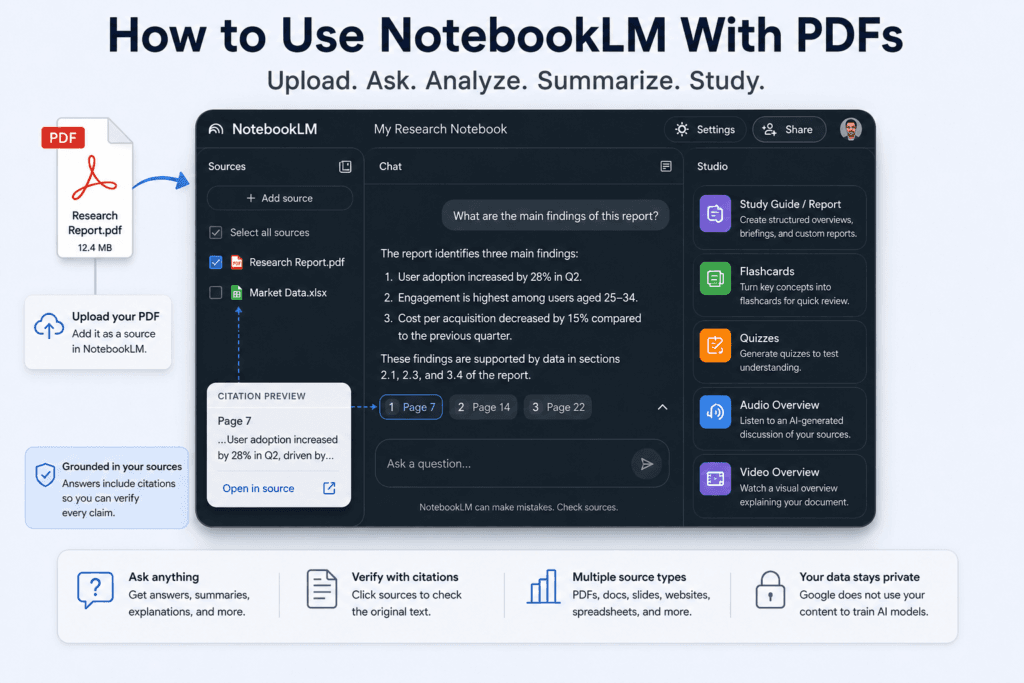
If you regularly work with PDFs, compare the document workflows in NotebookLM vs ChatGPT for PDFs. For a similar upload problem on Google’s platform, use our guide to fix a failed Gemini file upload. New users can also start with our ChatGPT beginner’s guide.

Pingback: Claude Text Watermark: Can AI-Written Text Be Detected?
Pingback: GPT-6 Astra Not Showing in ChatGPT? Here’s Why
Pingback: Gemini “Delete Data to Upload File” Error: 7 Fixes