
If Gemini shows “Delete data to upload file,” you have most likely reached Gemini Apps’ own storage limit, which is separate from your Google Drive or Google Workspace storage. Google says chats and uploaded files stored in Gemini Apps count toward this limit, and file uploads remain blocked until enough Gemini storage is cleared.
That distinction is important because deleting files from Google Drive may do nothing.
The fastest fix is usually to delete old Gemini activity that contains file uploads, then wait a few minutes for the storage counter to update.
What does “Delete data to upload file” mean?
Google officially documents this exact error.
Gemini Apps store data from previous activity, including chats and uploaded files. That data has its own storage limit. If you hit it, Gemini blocks new file uploads until you free space.
This Gemini storage limit is independent from Google Drive and Google Workspace storage.
So if you have 100 GB free in Google Drive but Gemini still refuses uploads, that is not necessarily a contradiction.
The two limits are different.
Fix 1: Delete Gemini activity with uploaded files
This is the official first fix.
Google specifically notes that chats with uploaded videos, photos, Google Drive files or NotebookLM files can take up more space in Gemini Apps.
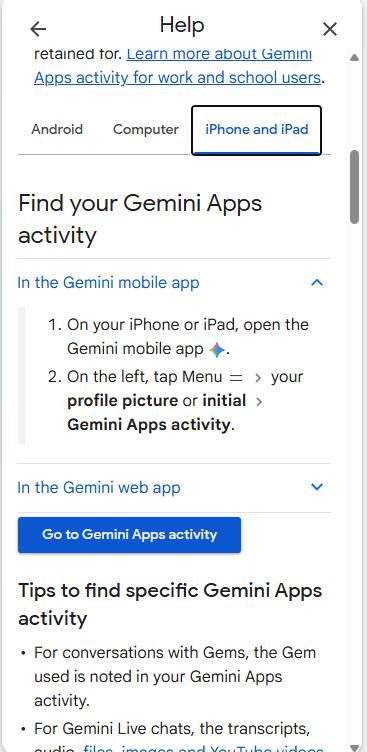
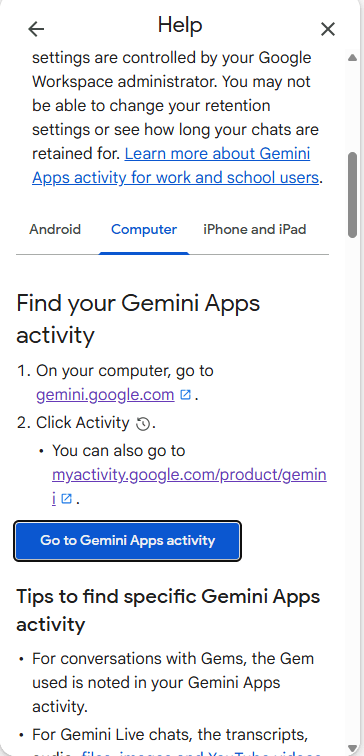
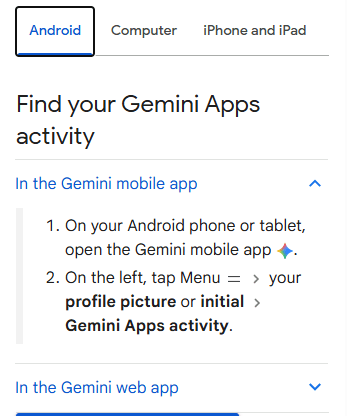
On desktop:
- Open Gemini.
- Go to Settings and help.
- Open Activity.
- Delete older Gemini activity, especially chats that contain uploaded files.
- Wait several minutes.
- Try uploading again.
Google warns that storage may not update instantly after deletion.
If the error remains, delete more Gemini activity and wait again.
What should you delete first?
Prioritize:
- Chats with large PDFs
- Chats with videos
- Chats with multiple images
- Drive-file uploads
- NotebookLM imports
- Old file-analysis conversations
These are more likely to consume meaningful Gemini storage than simple text-only chats.
Fix 2: Delete old Gems with knowledge files
Read also : How to Use Gmail’s Manage Subscriptions Feature
Custom Gems can also store uploaded reference files.
If you created Gems with PDFs, documents, images or other knowledge files, those can contribute to Gemini storage usage. Google specifically says deleted Gems may take several minutes before freed storage is reflected.
Open your Gem manager and check for:
- Old custom Gems
- Duplicate Gems
- Gems with large knowledge files
- Test Gems you no longer use
Delete unnecessary ones, then wait before trying another upload.
Do not expect an immediate reset.
Fix 3: Make sure this is not a different upload limit
Gemini has more than one type of file-upload limit.
That matters because a storage-limit error and a rolling usage-limit error are not the same thing.
Google also documents an error called:
“You’ve reached your limit for chats with files.”
That is a rolling usage limit. Google says it resets after some time.
By contrast:
“Delete data to upload file” means stored Gemini data has reached its limit.
So the response should be different:
- Delete data to upload file → clear Gemini Apps storage
- Reached your limit for chats with files → wait for the rolling limit to reset
This is one of the most important distinctions in this problem.
read also :ChatGPT File Upload Failed? 9 Fixes That Actually Work
Fix 4: Check the file itself
If Gemini still rejects the upload after storage cleanup, confirm that your file is within Gemini’s current file limits.
Google says Gemini supports up to 10 files in one prompt, subject to availability. Individual videos can be up to 2 GB, while other supported files can be up to 100 MB each.
ZIP files can also be up to 100 MB and contain up to 10 files, but cannot contain video or audio.
Try a simple test:
- Create a tiny text file or small PDF.
- Upload only that file.
- If the small file also triggers “Delete data to upload file,” the problem is probably account storage rather than file size.
This test is useful because it quickly separates file-specific failures from an account-level limit.
Fix 5: Try web and mobile with the same account
If you suspect a browser issue, test the same Google account in another environment.
Try:
- Gemini web in Chrome
- Gemini web in an Incognito window
- Another browser
- Gemini mobile app
- Another device
This is useful diagnostically, but it is important not to overpromise.
Recent users in Google’s Gemini Community have reported that the same error continued across browsers, devices and networks even after clearing activity.
That suggests some persistent cases are account-side rather than browser-side.
So if the same error appears everywhere, repeatedly clearing browser cache is unlikely to solve the root cause.
Fix 6: Wait for Gemini’s storage counter to refresh
Google explicitly says deleted Gemini activity or Gems may take several minutes to clear storage space.
After deleting activity:
- Wait at least several minutes.
- Sign out of Gemini.
- Sign back in.
- Try uploading one small file.
Do not immediately delete your entire Google account history just because the error persists for 30 seconds.
Start with the most storage-heavy chats and Gems.
If you still get the error after a reasonable wait, move to the next step.
Fix 7: Treat persistent cases as a possible account-side problem
This is where the official fix becomes less complete.
Several recent Gemini Community posts describe users who:
- Deleted all Gemini activity
- Removed custom Gems
- Had plenty of Google Drive space
- Tried different browsers
- Tried different devices
- Waited days or weeks
…and still received the same “Delete data to upload file” message.
One September 2026 report describes an account that remained blocked for months after all activity had been wiped.
These are community reports, not confirmation from Google that there is a universal Gemini backend bug.
But they show that deleting activity does not fix every case.
If you have already followed Google’s official cleanup steps and the same account fails on multiple devices for days, the problem may require Google support rather than more local troubleshooting.
What to send Google support
Before contacting support, collect:
- Screenshot of the exact error
- Your Google account type: personal, work or school
- Whether the problem occurs on web and mobile
- Whether you deleted Gemini Apps activity
- Whether you deleted Gems with knowledge files
- How long you waited after deletion
- Whether a tiny file also fails
Then send feedback directly from Gemini while the error is visible.
That gives Google more useful diagnostic context than simply reporting “uploads don’t work.”
If you use Gemini through a work or school Workspace account, there is another limitation: Google says only the Workspace administrator can delete Gemini Apps activity for those accounts.
In that case, contact your administrator.
Gemini upload limits you should know
As of September 2026, Google documents these general Gemini upload limits:
| Limit | Current documented value |
|---|---|
| Files per prompt | Up to 10 |
| Non-video file size | Up to 100 MB each |
| Video file size | Up to 2 GB each |
| ZIP size | Up to 100 MB |
| ZIP contents | Up to 10 files |
| Free-plan video length | Up to 5 minutes total |
| Free-plan audio length | Up to 10 minutes total |
Google AI Pro and Ultra can provide higher limits in some areas.
These limits can change, so check Google’s current help documentation if you are reading this later.
Why deleting Google Drive files may not help
This is probably the most confusing part of the error.
Gemini’s storage quota is separate from your Google Drive storage.
That means all of these can be true at the same time:
- Google Drive has plenty of free space
- Your Google One storage is not full
- Your uploaded file is only 2 MB
- Gemini still refuses the upload
The error can still happen because Gemini’s own stored activity has reached its internal limit.
So do not start deleting important Drive files unless you have an unrelated Drive-storage problem.
Should you clear browser cache?
You can try it, but it should not be your first fix.
A browser problem can interfere with uploads, but the specific “Delete data to upload file” error is documented by Google as a Gemini storage-limit issue.
If the exact same message appears on another browser and another device, browser cache becomes even less likely to be the cause.
Use browser troubleshooting mainly as a diagnostic step.
Can upgrading to Google AI Pro fix it?
Not necessarily.
Google says paid plans can provide higher limits for file usage.
But if your account is stuck on the specific stored-data limit, upgrading should not be treated as a guaranteed fix.
Community reports include paid users who continued to see the same error.
So do not upgrade purely because you expect it to clear a broken quota state.
Upgrade only if the higher limits and other plan features are useful to you anyway.
Quick troubleshooting checklist
Use this order:
- Delete Gemini activity containing uploaded files.
- Delete old Gems with knowledge files.
- Wait several minutes.
- Test a very small file.
- Try another browser or device.
- Confirm the error is not a rolling file-usage limit.
- If the account remains blocked for days, submit feedback or contact Google support.
This keeps the troubleshooting safe and avoids deleting unrelated Drive data.
Bottom line
The “Delete data to upload file” error usually means you reached Gemini Apps’ own storage limit, not your Google Drive storage limit. Google’s official fix is to delete Gemini activity and Gems that contain uploaded files, then wait for the storage counter to refresh.
If that does not work and the same account fails across multiple browsers and devices, stop repeating local fixes.
Recent community reports show that some users remain locked out even after clearing all visible Gemini activity, which means persistent cases may require Google support or an account-side correction.
The key is to identify which limit you are actually hitting before deleting anything.
Sources
Google — Upload and analyse files in Gemini Apps
Google Gemini file upload help
Google Gemini Community — Persistent “Reached data limit” report, September 2026
Gemini Community report
Google Gemini Community — Data-limit error despite empty activity
Gemini Community discussion


Pingback: Can ChatGPT Analyze Google Search Console Data?
Pingback: Gemini File Upload Failed? 8 Ways to Fix It
Pingback: Gemini “Something Went Wrong (13)” Error: 7 Fixes
Pingback: What Is Gemini 4 Argon? Google’s New Flagship AI Explained