
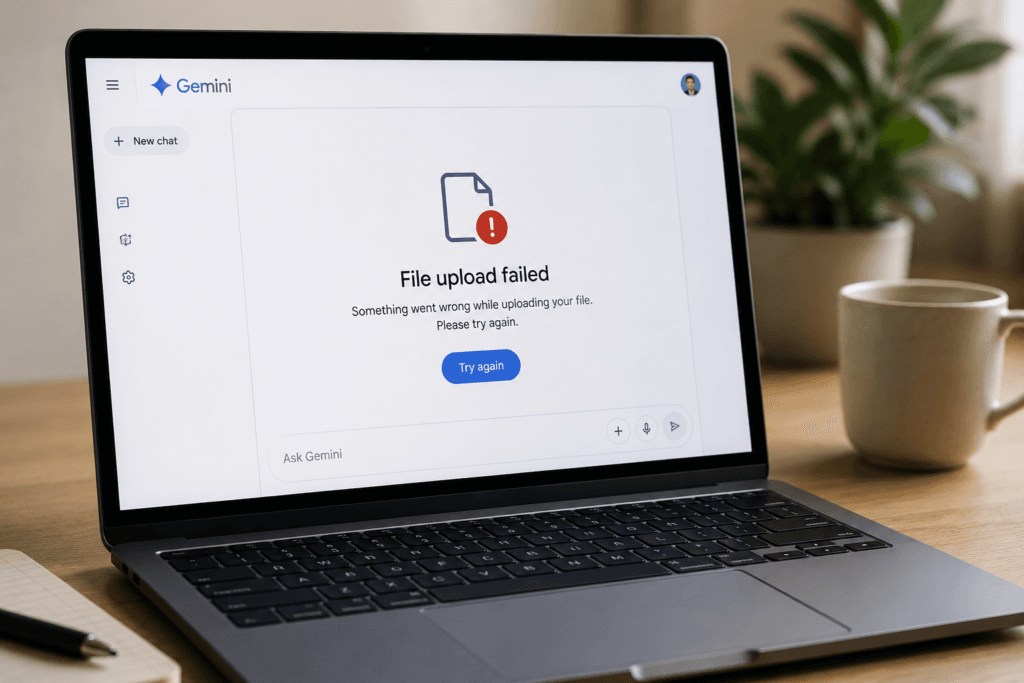
If a Gemini file upload failed, check the file size first.
Google currently allows up to 10 files in one prompt, with a maximum size of 100 MB for most supported file types and 2 GB for a single video. ZIP files also have their own restrictions.
If your file is within those limits, the problem may be the file itself, your Gemini storage, or the way you are uploading it.
Quick fix checklist
Try these in order:
- Check the file size.
- Confirm the format is supported.
- Retry the upload.
- Check Gemini Apps storage.
- Try the browser instead of the app.
- Upload through Google Drive.
- Create a smaller or cleaner version.
- Re-export the file.
1. Check the Gemini file-size limit
For most supported files, Gemini currently allows up to 100 MB per file.
Videos can be up to 2 GB.
This means a large PDF, spreadsheet, image archive, or presentation may fail even if your Google Drive has plenty of free space.
On Windows
Right-click the file → Properties
On macOS
Right-click the file → Get Info
If the file is over 100 MB, try:
- Compressing it
- Splitting it into smaller files
- Removing unnecessary images
- Exporting a lower-resolution copy
2. Check how many files you are uploading
Google says Gemini supports up to 10 files in a single prompt, subject to availability.
If you selected more than 10, divide them into smaller groups.
For example:
- Files 1–5 in the first prompt
- Files 6–10 in the second
This can also make the analysis more focused.
Read also : Claude Text Watermark: Can AI-Written Text Really Be Detected?
3. Retry the upload if Gemini cannot analyze the file
Google explicitly recommends uploading the file again if Gemini reports that it could not analyze it correctly.
That is worth trying before changing anything else.
If the second attempt fails, create a fresh copy of the file rather than repeatedly uploading the same one.
Read also : Gemini Spark Explained

4. Fix the “Delete data to upload file” error
This error is easy to misunderstand.
Gemini Apps have their own activity storage limit, which includes chats and uploaded files.
That limit is separate from Google Drive and Google Workspace storage. When it fills up, Gemini can stop accepting new uploads until you clear some Gemini data.
So buying additional Google Drive storage does not automatically fix this error.
What to do
Open your Gemini activity and remove old chats or uploaded-file conversations you no longer need.
Be careful: deleting old activity may remove information you still want.
5. Try Gemini in your browser
If the upload fails in the Android app, try:
gemini.google.com
Then:
Add files → Upload files
Google documents file uploading in both the web app and Android versions.
If the browser works but the app does not, the issue is more likely related to the app, permissions, or the mobile file picker.
You can then:
- Restart the Gemini app
- Update it
- Check file permissions
- Restart the phone
Avoid clearing all app data unless simpler steps fail.
6. Try uploading from Google Drive
If Gemini cannot read a local file correctly, try placing the file in Google Drive and attaching it from there.
This is especially useful for work or school documents already stored in Drive.
For Workspace accounts, Google notes that an administrator may need to enable Gemini access to connected apps before Drive files can be used.
If the Drive option is missing on a company account, that may be an administrator restriction rather than an upload bug.
7. Check ZIP file restrictions
Gemini supports ZIP files, but Google currently applies specific rules.
A ZIP file:
- Can contain up to 10 files
- Can be up to 100 MB
- Cannot include audio or video files
If your ZIP contains 30 documents or a video, it may fail even though the ZIP itself is under 100 MB.
Extract the archive and upload only the files you need.
8. Re-export the file
A document can be under the size limit and still contain problematic formatting.
This can happen with:
- Damaged PDFs
- Old spreadsheet formats
- Complex embedded objects
- Scanned documents
- Unusual fonts
- Very large images
If you created the file yourself, open it and export a clean version.
Examples:
Word:
File → Save As → PDF
Google Docs:
File → Download → PDF
Excel:
File → Save As → XLSX
Then upload the new file.
For scanned PDFs, run OCR first if Gemini needs to understand the text.
Read aslo : Google AI Search Agents: What Can They Do?
What if Gemini uploads the file but gives bad answers?
That is not an upload problem.
Test the file with a question whose answer you already know.
For example:
What date appears on page 4?
If Gemini gives the wrong answer, check:
- Whether the PDF is scanned
- Whether the text is selectable
- Whether tables are complex
- Whether the file contains multiple columns
- Whether important information is inside images
For large documents, ask about one section at a time.
Does Google AI Pro increase file limits?
Paid Google AI plans increase some usage limits, including how much audio or video content can be uploaded.
For example, Google currently documents up to 5 minutes of video on standard access, increasing to up to 1 hour with Google AI Pro or Ultra. Audio increases from 10 minutes to up to 3 hours on those paid plans.
However, the basic per-file limits of 100 MB for most files and 2 GB for video remain the documented upload ceilings.
Do not upgrade only because one PDF is 120 MB.
Compress or split the file first.
What if every upload fails?
Use a simple test:
- Create a one-page PDF.
- Upload it to Gemini.
- If it works, the original file is the problem.
- If it fails, try the browser.
- Sign out and back in.
- Try another supported file type.
- Check Google’s Gemini service status or support pages.
This separates account or service problems from file-specific problems.
Final recommendation
When a Gemini file upload fails, start with the confirmed limits:
- Maximum 10 files per prompt
- Maximum 100 MB for most supported files
- Maximum 2 GB for video
- ZIP files: up to 10 files, 100 MB, no audio or video
If the file is within those limits, retry it, check Gemini Apps storage, test the browser, and create a cleaner export.
Do not change multiple things at once. Use a small test file first and narrow down whether the problem is Gemini, your account, or the file itself.
→ Sources:
Google — Upload and analyze files in Gemini Apps
Google — Gemini Apps Help



Pingback: What Is Gemini Spark? Features, Uses and Risks
Pingback: Gemini “Delete Data to Upload File” Error: 7 Fixes
Pingback: Gemini “Something Went Wrong (13)” Error: 7 Fixes
Pingback: Dyson £420 Toothbrush: Is the CameraJet Worth It?