
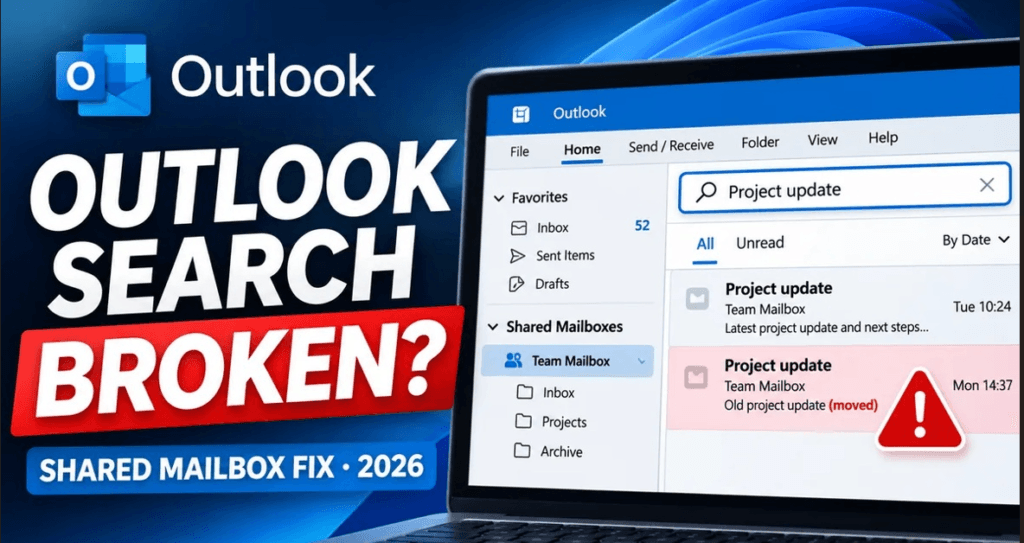
If search is not working correctly in a shared mailbox in classic Outlook, the problem may not be your mailbox permissions or Windows search index. Microsoft has confirmed an issue where server-assisted search results do not update correctly when emails are moved or modified.
As of November 2026, Microsoft still lists the issue as Fix in Progress. The company recommends temporarily disabling Server Assisted Search, which makes Outlook fall back to legacy Windows Desktop Search.
Before changing anything in Windows, however, I would check the search scope and confirm which problem is actually occurring.
Quick Fix: Check the Outlook Search Scope First
If Outlook is not finding emails in a shared mailbox, I would start with a simple test.
- Open classic Outlook.
- Select the shared mailbox in the left navigation pane.
- Open the folder containing the missing message.
- Click the search box.
- Set the search scope to Current Folder.
- Enter a keyword from an email you know exists.
This matters because Outlook does not always search shared mailboxes the way users expect.
Microsoft confirms that using All Mailboxes may return no results from shared mailboxes due to a search-scope limitation.
If selecting Current Folder solves the problem, I would not change the Windows registry or rebuild the search index.
This is a configuration or search-scope issue, not necessarily a software bug.
Microsoft Confirms a New Outlook Search Issue
Microsoft documented another problem affecting classic Outlook for Microsoft 365.
According to its support notice, last updated September 29, 2026, Server Assisted Search may fail to refresh results after messages are changed.
Microsoft provides a specific example:
- Open a mailbox configured in Online Mode.
- Select a folder.
- Search for a message using Current Folder.
- Move one of the returned emails into another folder.
Normally, the moved message should disappear from the original folder’s search results.
Instead, Outlook may continue displaying it.
Clicking the outdated result can also produce an error.
Microsoft says the issue may occur when changing an email’s category or marking a message as read or unread.
An important detail: Microsoft says this can also be reproduced with a single mailbox in Online Mode. It is not exclusively a shared-mailbox problem.
How to Recognize the Problem
I would suspect the confirmed Microsoft issue if Outlook behaves like this:
- Search results continue showing emails after they have been moved.
- Clicking certain search results produces errors.
- Results do not refresh after message changes.
- Changing an email’s category does not update the search results correctly.
- Marking messages as read or unread leaves outdated results visible.
These symptoms are different from Outlook returning no results at all.
That distinction is essential because the registry workaround addresses server-assisted search behaviour, not every possible Outlook search failure.
Fix 1: Use Microsoft’s Official Registry Workaround
Microsoft has published a temporary workaround for affected classic Outlook users.
The solution is to disable Server Assisted Search so that Outlook falls back to legacy Windows Desktop Search.
Important: Editing the Windows registry incorrectly can affect application behaviour. On a company-managed device, I would have the change reviewed or performed by IT.
Step 1: Close Outlook
Close classic Outlook completely before making the change.
Step 2: Open Registry Editor
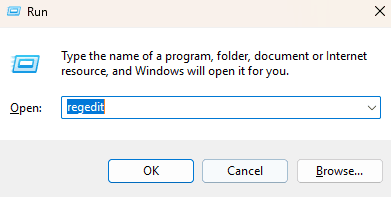
Press Windows + R, type regedit, and press Enter.
If Windows requests confirmation, proceed only if you are authorized to make the change.
Step 3: Locate the Outlook Search registry path
Navigate to:
HKEY_CURRENT_USER\Software\Policies\Microsoft\Office\16.0\Outlook\Search
If the Outlook or Search subkey does not exist, an authorized administrator can create the required keys under the documented policy path.
Step 4: Create the DWORD value
Inside the Search key, create a new:
DWORD (32-bit) Value
Name it:
DisableServerAssistedSearch
Set its value data to:
1
The setting should now look like this:
| Registry setting | Value |
|---|---|
| Name | DisableServerAssistedSearch |
| Type | REG_DWORD |
| Value | 1 |
Step 5: Restart Outlook
Close Registry Editor and reopen classic Outlook.
The new policy should make Outlook use legacy Windows Desktop Search rather than Server Assisted Search.
I would then repeat the original test by searching for an email and moving it to another folder.
If the search results now update correctly, the workaround has helped with the reported symptom.
This is a workaround, not a permanent Microsoft fix.
Read also : Apple Mail Stopped Syncing With Microsoft 365? Here’s What I Would Check First
Fix 2: Check Windows Search Indexing
If Outlook returns incomplete results or no results, I would investigate Windows Search separately.
This is particularly relevant when Outlook uses local Windows Desktop Search.
Check indexing status
- Open classic Outlook.
- Select the search box.
- Open Search Tools → Indexing Status.
- Check whether Outlook is still indexing messages.
If Outlook reports that indexing is incomplete, searches may not return every expected item.
Microsoft recommends checking whether the number of remaining items decreases before taking further action.
Verify Windows Search is running
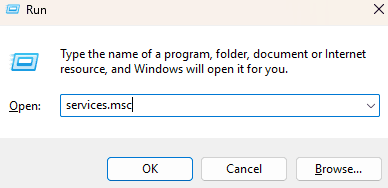
Press Windows + R, type services.msc, and press Enter.
Locate Windows Search.
Check whether the service is running and configured appropriately.
I would not immediately rebuild the entire search index. Rebuilding can take time, especially when Outlook contains a large amount of locally cached email.
Fix 3: Test the Shared Mailbox in Outlook on the Web
Before making major changes to Outlook, I would also test the mailbox in a browser.
Open:
Sign in with your Microsoft 365 account and access the shared mailbox using the appropriate mailbox-opening option.
Search for the same email.
If the message appears in Outlook on the web but not in the classic Outlook application, that is useful diagnostic evidence.
It suggests the mailbox content is accessible and that the problem may involve the desktop application’s search configuration.
However, it does not prove that Windows indexing is the cause.
If the same issue appears in both applications, I would report the behaviour to the Microsoft 365 administrator for further investigation.
Fix 4: Check How the Shared Mailbox Was Added
Another detail worth checking is how the shared mailbox is configured in Outlook.
Shared mailboxes can appear automatically when a user has the appropriate permissions, or they can be added using other supported configurations.
Microsoft documents adding a shared mailbox as a secondary Exchange account as a workaround for certain search-scope limitations.
This is different from the November 2026 server-assisted search bug.
If the problem specifically involves shared mailbox results being missing when using broader search scopes, the mailbox configuration may be relevant.
For a managed company environment, I would ask the Exchange administrator to review the configuration rather than remove and recreate the mailbox without checking permissions and the existing Outlook profile.
What If Several Employees Have the Same Problem?
If multiple employees report that search results are not updating correctly, I would not start by recreating every Outlook profile.
I would first compare the symptoms.
For example:
- Are all affected users running classic Outlook?
- Are they using Microsoft 365 mailboxes?
- Does the problem occur in Online Mode?
- Are the results outdated after moving or modifying emails?
- Does the problem disappear when using the documented workaround?
If several computers reproduce Microsoft’s confirmed symptoms, the known issue becomes a strong explanation.
For IT administrators, I would document the affected Outlook builds, mailbox configuration, and exact reproduction steps before deciding whether to deploy a temporary registry policy.
Is There a Permanent Fix?
Not yet, according to Microsoft’s published status as of November 8, 2026.
Microsoft says the issue has been escalated to the Outlook team as a hotfix.
The official status remains:
Fix in Progress
Microsoft has not published a confirmed release date for the permanent fix in its known-issue notice.
Until then, the documented workaround is to disable Server Assisted Search temporarily.
Because this is a policy-based configuration, I would also plan how to restore normal behaviour once Microsoft confirms the issue has been resolved.
How to Undo the Registry Workaround
Once Microsoft releases and verifies a permanent fix, the temporary setting can be reversed.
An administrator can return to the same registry path:
HKEY_CURRENT_USER\Software\Policies\Microsoft\Office\16.0\Outlook\Search
Then remove the DisableServerAssistedSearch value if it was created specifically for this workaround.
Restart Outlook and verify search behaviour again.
If the setting was originally deployed through an organizational policy, it should be reversed through that policy instead of manually overridden.
What I Would Avoid
I would not recommend reinstalling Microsoft Office as the first solution.
I would also avoid deleting Outlook profiles, rebuilding all Windows Search indexes, or changing Exchange mailbox permissions before understanding the symptoms.
Those steps can consume time without addressing Microsoft’s confirmed problem.
The correct solution depends on whether Outlook is:
- Returning no results
- Returning incomplete results
- Searching the wrong scope
- Displaying outdated results after messages change
These are not necessarily the same issue.
Bottom Line
If Outlook shared mailbox search is not working, I would first change the search scope to Current Folder and check whether the missing messages appear.
If Outlook instead continues displaying emails after they have been moved or modified, Microsoft’s confirmed Server Assisted Search issue may be responsible.
Microsoft’s temporary workaround is to set:
DisableServerAssistedSearch = 1
under the documented Outlook Search policy registry path.
This switches Outlook back to legacy Windows Desktop Search.
For company-managed devices, the change should be reviewed by IT before deployment.
As of November 8, 2026, Microsoft still lists the underlying issue as Fix in Progress, so I would treat the registry change as temporary and monitor Microsoft’s support page for a permanent resolution.


Pingback: Gmail’s Hidden Subscription Manager: How to Unsubscribe Faster
Pingback: Outlook Contact Sharing Not Working? Microsoft's Fix