
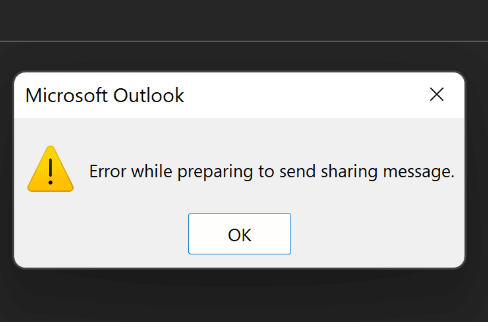
If classic Outlook displays an error when you try to share your Contacts folder, you may be dealing with a confirmed Microsoft 365 issue rather than a problem with your Outlook profile.
Microsoft confirmed in November 2026 that the normal contact-sharing invitation process can fail when Exchange Web Services (EWS) is disabled in Exchange Online. The good news is that Microsoft has already developed a fix, and there is an official workaround available while the update rolls out.
The quickest workaround is to assign permissions directly to your Contacts folder instead of using the normal Share Contacts invitation. I’ll explain exactly how to do that and how the recipient can access the folder.
Why Is Outlook Contact Sharing Not Working?
Microsoft published a known-issue notice, last updated November 4, 2026, explaining that some users cannot share their default Contacts folder in classic Outlook for Windows.
The problem affects the standard sharing process:
- Open People or Contacts in classic Outlook.
- Right-click the default Contacts folder.
- Select Share → Share Contacts.
- Add a recipient.
- Click Send.
Instead of completing the invitation successfully, Outlook may display an error.
Microsoft explains that this workflow previously relied on Exchange Web Services, also known as EWS.
When EWS is disabled in Exchange Online, the older sharing process may no longer work correctly.
This is an important distinction because reinstalling Outlook or rebuilding your profile will not necessarily solve a problem caused by an unavailable Exchange service.
Quick Fix: Share Contacts Through Folder Permissions
Until Microsoft’s permanent fix reaches all affected users, I would use the workaround recommended in its official support documentation.
Instead of sending a sharing invitation, assign access directly to the Contacts folder.
Step 1: Open the Contacts Folder
Open classic Outlook for Windows.
Switch to the People or Contacts section.
Find the default Contacts folder you want to share.
Make sure you select the correct folder, particularly if you have multiple accounts configured in Outlook.
Step 2: Open Folder Properties
Right-click the Contacts folder.
Select:
Properties → Permissions
This tab controls which users have access to the folder.
Step 3: Add the Recipient
Inside the Permissions tab:
- Click Add.
- Search for the person who needs access.
- Select the appropriate user.
- Confirm the selection.
- Choose the required permission level.
- Click OK.
I would assign only the permissions the recipient actually needs.
For example, someone who only needs to view contacts should not automatically receive permission to modify or delete them.
Step 4: Inform the Recipient
This workaround does not use the normal sharing invitation.
Once the permissions are assigned, contact the recipient directly and explain that access has been granted.
The recipient must then open your shared Contacts folder manually in classic Outlook.
Read also : Outlook Shared Mailbox Search Not Working? Here’s What to Fix
Apple Mail Stopped Syncing With Microsoft 365? Here’s What I Would Check First
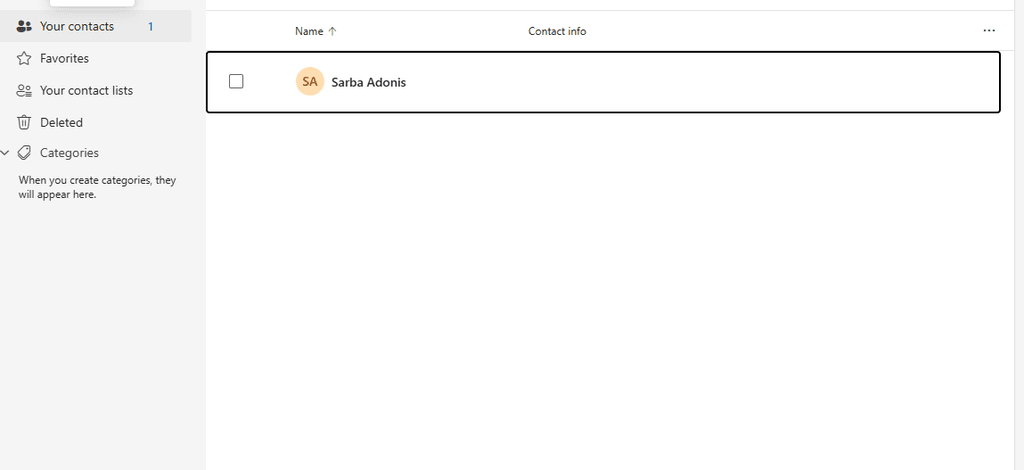
How to Open the Shared Contacts Folder
This is the part that can easily be overlooked.
Giving someone folder permissions does not necessarily make the Contacts folder immediately appear in their Outlook navigation pane.
Microsoft documents the following process for the recipient.
Step 1: Open Classic Outlook
The recipient should open classic Outlook for Windows using the account that received permission.
Step 2: Open Another User’s Folder
Select:
File → Open & Export → Other User’s Folder
A dialog will appear.
Step 3: Select the Person Sharing Contacts
Click Name and find the person who shared their Contacts folder.
Select the correct account.
Step 4: Choose Contacts
Under Folder type, select:
Contacts
Click OK.
If permissions were assigned correctly and the account supports this sharing method, the recipient should now be able to open the shared Contacts folder.
These are the steps Microsoft specifically recommends for its November 2026 contact-sharing issue.
What If the Shared Contacts Folder Still Won’t Open?
If the recipient still cannot access the folder, I would check the permissions before making changes to Outlook itself.
First, return to the Contacts folder’s Properties and Permissions tab.
Confirm that:
- The correct recipient was added.
- The required permission level was selected.
- The changes were saved.
- The recipient is opening the correct person’s folder.
- The recipient selected Contacts rather than another folder type.
I would also confirm that both users are working with the intended organizational Exchange accounts.
If the permissions appear correct but access is still denied, the Microsoft 365 administrator may need to investigate.
Microsoft’s documented workaround addresses the specific sharing-invitation failure. It does not guarantee that every unrelated Contacts permission or access error will be resolved.
Does This Affect Every Version of Outlook?
Microsoft’s known-issue notice lists the following Outlook products:
- Outlook for Microsoft 365
- Outlook 2024
- Outlook 2021
- Outlook 2019
- Outlook 2016
However, the issue specifically concerns the default Contacts folder sharing workflow in classic Outlook for Windows.
I would not automatically assume that every Contacts problem in new Outlook, Outlook on the web, or mobile Outlook has the same cause.
If the error appears in another Outlook application, I would investigate that application’s sharing options separately.
Is There a Permanent Fix?
Yes, Microsoft has implemented a fix, but its rollout was still ongoing when the issue notice was last updated.
According to Microsoft’s November 4, 2026 announcement, the Outlook team developed an updated Contacts folder-sharing solution that no longer depends on the affected EWS functionality.
The official status is:
Fix Rolling Out
That means some users may already have the corrected behaviour while others may still experience the error.
Microsoft has not provided a universal completion date in the issue notice.
I would therefore avoid assuming that every affected computer has already received the fix.
For now, the direct-permissions workaround remains the supported option for users who cannot send the normal contact-sharing invitation.
Should I Reinstall Outlook?
I would not recommend reinstalling Outlook as the first troubleshooting step.
Microsoft has identified a specific service-related reason why the contact-sharing invitation can fail.
Reinstalling the desktop application does not necessarily change which Exchange Online services are available.
The same applies to deleting and recreating the Outlook profile.
Those actions may be appropriate for other Outlook problems, but Microsoft does not recommend them as the workaround for this particular issue.
Instead, I would first use folder permissions and confirm whether the recipient can access the shared Contacts folder.
What About Company-Managed Outlook Accounts?
If I were troubleshooting this in a company environment, I would begin by checking whether the problem affects one user or multiple employees.
For example, if several users suddenly cannot send Contacts sharing invitations, I would investigate the known Microsoft issue before treating every computer as a separate problem.
For an IT support ticket, I would record:
- Outlook version and build
- Affected Microsoft 365 account
- Whether the default Contacts folder is involved
- Whether the error occurs when sending the sharing invitation
- Whether direct folder permissions work
- Whether the recipient can open the folder through Other User’s Folder
If the official workaround succeeds, I would document it as a temporary solution rather than claim that the original sharing functionality has been permanently repaired.
There is also no reason to change organization-wide Exchange settings without approval simply to bypass this issue.
Microsoft has already provided a supported alternative.
How Do I Know the Problem Is Fixed?
I would verify two separate things.
First, does the workaround work?
Grant access through the Permissions tab and confirm that the recipient can open the shared Contacts folder.
Second, does the normal sharing invitation work again?
Once Microsoft’s update reaches the affected Outlook installation, try the original Share → Share Contacts workflow again.
If the invitation can be sent successfully, the original problem may have been resolved for that user.
I would keep the distinction clear: successful access through folder permissions confirms the workaround, not necessarily the deployment of Microsoft’s permanent fix.
Bottom Line
If Outlook contact sharing is not working, I would not immediately reset Outlook, reinstall Microsoft 365, or recreate the user’s profile.
Microsoft confirmed that the normal Contacts sharing invitation can fail when Exchange Web Services is disabled in Exchange Online.
The official workaround is straightforward:
- Right-click the default Contacts folder.
- Open Properties → Permissions.
- Add the recipient and assign the required access.
- Ask the recipient to open File → Open & Export → Other User’s Folder.
- Select the person sharing the folder and choose Contacts.
Microsoft has already implemented a replacement sharing solution, and the fix was rolling out as of November 4, 2026.
Until it reaches all affected users, assigning permissions directly is the most practical supported workaround.
Sources
- Microsoft Support — Users receive an error while trying to share contacts through classic Outlook
- Microsoft Support — Fixes or workarounds for recent issues in classic Outlook for Windows
Read also Gemini Is Now in Your Car — Here’s What It Can Access and What You Can Control

Pingback: Outlook Shared Mailbox Search Not Working? Fixes for 2026
Pingback: Gemini in Android Auto: What It Can Access and How to Control It