
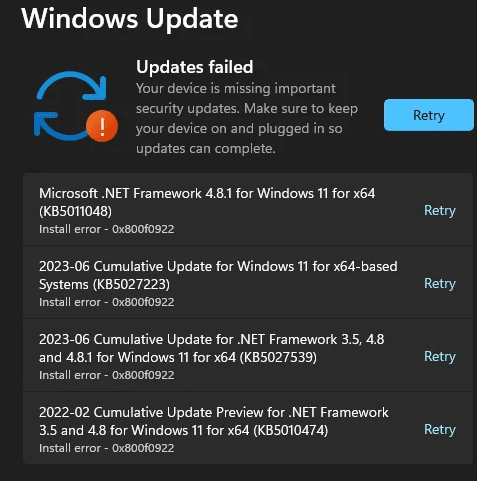
If Windows 11 keeps failing to install an update with error 0x800f0922, I would not immediately reinstall Windows or reset the computer.
This error can have several causes, including insufficient space in a system partition, a connection problem involving Windows Update, or problems with Windows components. Microsoft documents these possibilities, but the exact cause depends on the affected update and the computer.
I would start with the simplest checks and only move to advanced repairs if the update continues to fail.
What Does Windows Update Error 0x800f0922 Mean?
Error 0x800f0922 means Windows could not successfully complete an update installation.
One common situation is that Windows downloads an update, begins installing it, restarts, and then displays:
“Something didn’t go as planned. Undoing changes.”
After restarting, the update may appear as failed in Windows Update history.
Microsoft identifies several possible causes for 0x800f0922, including:
- Insufficient disk or system partition space
- Problems connecting to update services
- Interference from a VPN connection
- Problems involving Windows components or update installation
Importantly, the error code alone does not identify which of these caused the failure.
Fix 1: Restart Windows and Run the Update Troubleshooter
This is where I would begin.
A temporary Windows Update problem does not always require advanced commands.
First, restart the computer normally.
Then open:
Settings → System → Troubleshoot → Other troubleshooters → Windows Update → Run
Allow Windows to check for problems.
Once the troubleshooter finishes:
- Restart the computer again if requested.
- Open Settings → Windows Update.
- Click Check for updates.
- Try installing the failed update again.
If the update installs successfully, there is no reason to continue with the other fixes.
Microsoft recommends its Windows Update troubleshooter as one of the first steps for resolving update installation failures.
Fix 2: Check Free Disk Space and Your VPN Connection
Before changing system files, I would check two simple things: available storage and network connectivity.
Check available storage
Open File Explorer → This PC and examine the available space on the Windows drive, usually C:.
If the drive is nearly full, open:
Settings → System → Storage → Temporary files
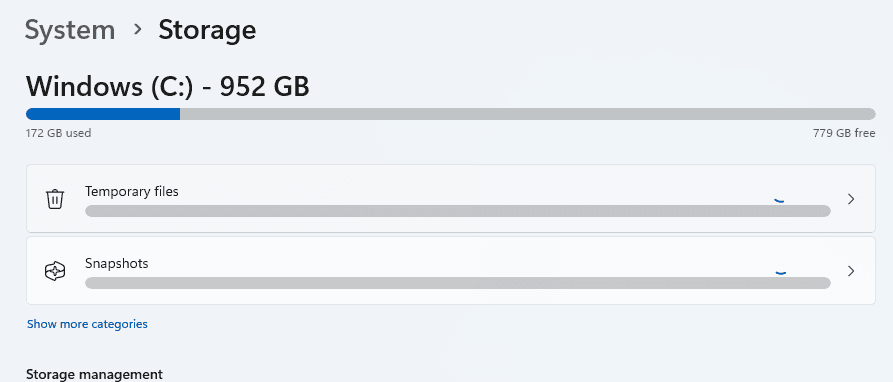
Remove unnecessary temporary files using Windows’ built-in cleanup options.
Be careful with the Downloads folder if it contains files you want to keep.
However, there is an important distinction.
Error 0x800f0922 can also occur when the small system partition used by Windows does not have enough free space.
That partition is separate from your normal C: drive.
Therefore, having plenty of free space on C: does not completely rule out a partition-space problem.
Check the VPN
If I were using a VPN, I would temporarily disconnect it on a personal computer and retry the update.
Microsoft specifically documents VPN connectivity as a potential cause of this error.
On a company-managed PC, I would check with IT before changing VPN settings or disconnecting required security software.
Fix 3: Repair Windows Components With DISM and SFC
If the update continues failing, I would investigate Windows system-file corruption.
Microsoft provides two built-in repair tools:
DISM (Deployment Image Servicing and Management) repairs the Windows component image.
SFC (System File Checker) checks protected system files and attempts to repair corruption.
These tools do not guarantee a fix for 0x800f0922, but they are reasonable diagnostic steps when component corruption is suspected.
Step 1: Open Command Prompt as administrator
Search for Command Prompt, right-click it, and select Run as administrator.
Step 2: Run DISM
Enter:
DISM.exe /Online /Cleanup-Image /RestoreHealthWait for the operation to complete. Avoid closing the window while it is running.
If DISM reports a successful repair, continue with the next command.
Read also : Gemini Is Now in Your Car — Here’s What It Can Access and What You Can Control
Step 3: Run SFC
Enter:
sfc /scannowWait until verification reaches 100%.
If Windows reports that corrupted files were repaired, restart the computer.
Then return to Windows Update and try the failed installation again.
I would avoid downloading random Windows repair tools from third-party websites when Microsoft already provides these built-in utilities.
Fix 4: Check Whether the System Partition Is Causing the Failure
This is a particularly important possibility if Windows repeatedly downloads the update but fails during the restart phase.
Windows uses dedicated partitions containing boot and recovery-related components.
Some updates need sufficient free space in these partitions to complete.
Microsoft documented a specific example in its May 2026 security update, KB5089549, where installation could fail with error 0x800f0922 when the EFI System Partition had very little free space.
This does not mean every occurrence of 0x800f0922 is caused by the EFI partition.
It does mean partition space should be investigated if the basic fixes fail.
How I would check it
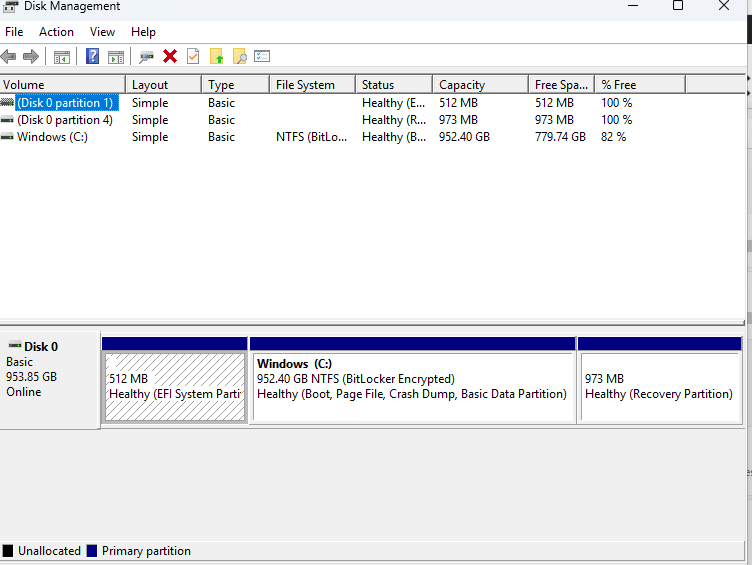
- Press Windows + X.
- Select Disk Management.
- Identify the system and EFI partitions.
- Record their sizes and layout.
- Compare the symptoms with Microsoft’s documentation for the specific failed update.
Disk Management does not normally show the EFI partition’s available free space directly.
I would not recommend deleting files from the EFI partition, formatting it, or resizing it without first confirming the problem.
A mistake involving this partition can prevent Windows from starting.
On a work computer, I would leave this investigation to the responsible IT administrator.
Fix 5: Repair Windows Without Removing Personal Files
If the previous methods fail, Windows 11 includes a built-in recovery option that can repair the operating system without performing a traditional clean installation.
Microsoft calls it Fix problems using Windows Update.
On supported Windows 11 systems, open:
Settings → System → Recovery
Look for:
Fix problems using Windows Update → Reinstall now
Microsoft says this process reinstalls the current Windows version, repairs system files and components, and preserves installed applications, files and settings.
Even so, I would back up important files before starting.
The computer should remain connected to power and the internet during the repair.
This option may not appear on company-managed computers or devices where Windows updates are centrally controlled.
I would use this as a later step, not as the first response to a single failed update.
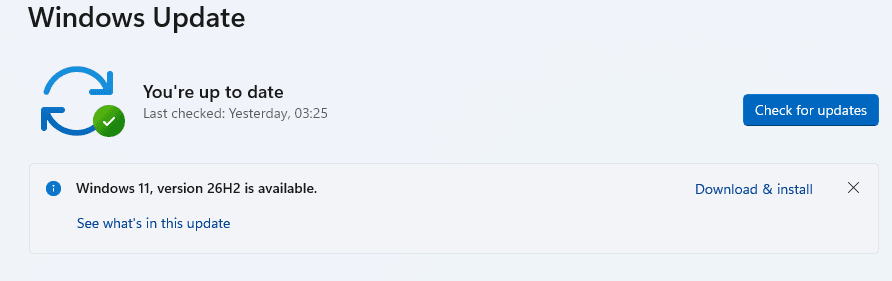
Does Error 0x800f0922 Also Affect Windows 11 25H2?
Yes, the error can appear during Windows 11 update installations, including on systems running or upgrading to Windows 11 25H2.
But I would be careful about blaming the 25H2 feature update itself without evidence.
Microsoft explains that Windows 11 25H2 uses an enablement package when upgrading from a sufficiently updated Windows 11 24H2 installation.
That process differs from a complete operating-system installation.
If the update fails, I would first identify exactly which update failed rather than assume the entire feature upgrade is defective.
Open:
Settings → Windows Update → Update history
Look for the failed entry.
Record the update name, KB number if displayed, installation date and error code.
Those details make troubleshooting much more precise.
What If This Is a Company-Managed Windows PC?
For computers managed through Microsoft Intune, Configuration Manager, Windows Update for Business or other enterprise systems, I would approach the problem differently.
I would first determine whether the error affects one device or multiple computers.
If several devices fail on the same update, an organization-wide update configuration or deployment problem becomes more plausible.
I would collect:
- Computer name
- Windows version and OS build
- Failed update or KB number
- Error code 0x800f0922
- Date and approximate time of failure
- Available disk space
- Windows Update history
- Relevant installation logs
I would not manually reset update policies, remove management settings, or bypass the company’s deployment configuration.
The responsible administrator should determine whether the issue is local to the device or related to the managed update process.
How Do I Know the Problem Is Fixed?
I would not assume the repair succeeded just because Windows restarted without displaying an error.
Instead, I would verify the update.
Open:
Settings → Windows Update → Update history
Find the update that previously failed.
Check whether it now appears under successfully installed updates.
For a feature update, press Windows + R, enter winver, and confirm the expected Windows version and OS build.
If the update is still failing, preserve the exact error information before trying further changes.
Bottom Line
If I encountered Windows 11 update error 0x800f0922, I would follow this order:
- Restart Windows and run the Windows Update troubleshooter.
- Check available storage and VPN connectivity.
- Repair Windows components using DISM and SFC.
- Investigate the system partition if installation repeatedly fails during restart.
- Consider Windows’ built-in repair installation if the earlier fixes do not work.
The most important point is that 0x800f0922 does not have one universal fix.
Sometimes the solution is simple. In other cases, the problem involves a system partition or Windows component that needs more careful investigation.
I would identify the failed update and its actual cause before making risky system changes.
Sources
- Microsoft Support — Get help with Windows upgrade and installation errors
- Microsoft Support — Troubleshoot problems updating Windows
- Microsoft Support — Using System File Checker in Windows
- Microsoft Support — Fix issues by reinstalling the current version of Windows
- Microsoft Learn — What’s new in Windows 11, version 25H2

Pingback: Gemini in Android Auto: What It Can Access and How to Control It