
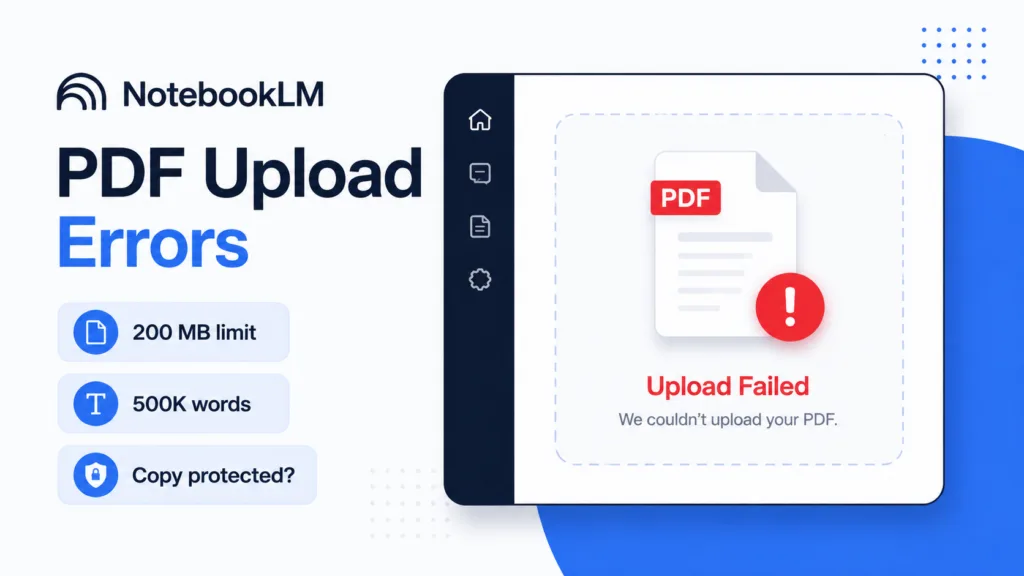
If a NotebookLM PDF upload failed, check three things first: the file must stay under 200 MB, contain no more than 500,000 words, and must not be copy-protected.
Google explicitly lists those three conditions as reasons a source cannot be imported. There is currently no separate PDF page limit.
If your PDF passes those checks but still gives poor results or refuses to process correctly, the file itself may need cleaning, OCR, compression, or re-exporting.
Quick fix checklist
Try these in order:
- Check the file size.
- Check whether the PDF is copy-protected.
- Confirm that text can be selected and copied.
- Run OCR if the document is a scan.
- Compress or split an unusually large document.
- Export a fresh PDF from the original application.
- Test a smaller section of the same document.
Do not immediately pay for a higher NotebookLM plan. Higher plans increase broader usage limits, but Google’s current documentation still lists 500,000 words or 200 MB per uploaded source.
Read also NotebookLM vs ChatGPT for PDFs: Which Is Better?
1. Check the 200 MB file-size limit
Open the file properties on your computer and check the PDF size.
Google currently allows local uploaded sources of up to 200 MB. Anything larger can fail to import.
On Windows
Right-click the PDF → Properties
On macOS
Right-click the PDF → Get Info
If the file is over 200 MB, your options are:
- Compress the PDF
- Remove unnecessary high-resolution images
- Split it into several PDFs
- Export a lower-resolution copy
Do not compress it so aggressively that text, diagrams or tables become unreadable.
2. Check whether the document exceeds 500,000 words
NotebookLM also limits each source to 500,000 words.
Most normal PDFs will not reach this limit, but very large books, document archives, exported chat histories and combined research collections can.
If the PDF is extremely long, split it logically.
For example:
- Part 1 — Introduction and Chapters 1–5
- Part 2 — Chapters 6–10
- Part 3 — Appendices
That also makes later questions easier because you can select only the relevant source.
3. Check whether the PDF is copy-protected
Google specifically states that an original copy-protected PDF cannot be imported.
A simple test:
- Open the PDF.
- Try to highlight a sentence.
- Copy it.
- Paste it into Notepad, TextEdit or another text editor.
If copying is blocked, the document may have security restrictions.
You can also inspect the document security settings in a PDF reader.
Do not try to bypass protection on a file you do not have permission to modify. Obtain an unrestricted version from the document owner instead.
4. Check whether the PDF contains real text
A PDF can display perfectly while containing nothing more than scanned images.
Try selecting a paragraph with your mouse.
If you cannot select individual words, the file may not contain a searchable text layer.
This matters because document analysis is more reliable when the text itself is available rather than embedded only as an image.
The fix: run OCR
OCR — Optical Character Recognition — converts the image of text into machine-readable text.
You can use a trusted PDF application or document scanner to perform OCR, then save a new PDF and upload that version.
After OCR, test it again:
- Open the new PDF.
- Copy a sentence.
- Paste it into a text editor.
- Confirm that the text is readable.
- Upload the new version to NotebookLM.
Poor scans can still cause mistakes, especially with unusual fonts, handwriting, multiple columns and low-resolution pages.
5. Split or compress a difficult PDF
Even if a file stays below the official size limit, a complicated PDF can still be harder to work with.
Examples include:
- Hundreds of high-resolution images
- Large engineering drawings
- Scanned magazines
- Multiple embedded fonts
- Very complex page layouts
- Huge tables
- Combined documents from several sources
Try creating a smaller test version containing only 10–20 pages.
If that uploads correctly, the problem is probably related to the original document rather than your NotebookLM account.
Then divide the document into sensible sections and upload them separately.
Google allows multiple sources inside the same notebook. Free users currently get up to 50 sources per notebook according to the official help page.
6. Export a fresh PDF
PDF files can contain damaged objects, unusual encoding or layers created by older software.
If the document is yours, open the original file in Word, Google Docs, LibreOffice, Adobe Acrobat or the application that created it.
Then choose:
File → Export / Save As → PDF
Upload the fresh export.
This is often preferable to repeatedly modifying a broken copy.
If you do not have the original file, printing the document to a new PDF may also simplify its structure, although interactive links, forms and other elements can be lost.
Always keep the original file before doing this.
7. Test the source in smaller pieces
If nothing else works, isolate the problem.
Create three files:
- Pages 1–10
- Pages 11–20
- Pages 21–30
Upload each separately.
If two work and one fails, inspect the problematic pages.
Look for:
- Unusual scans
- Embedded attachments
- Damaged pages
- Security restrictions
- Extremely large images
- Strange fonts or encoding
This is much faster than guessing at the entire document.
What if the PDF uploads but NotebookLM cannot understand it?
That is a different problem from an upload failure.
Once a source imports successfully, test it with a question whose answer you already know.
For example:
What date is given in section 3.2?
Then open the citation and verify the result.
Google says NotebookLM uses the selected notebook sources when answering questions. It also recommends asking specific questions when you need focused information rather than relying only on a generic summary.
If answers are consistently wrong, check:
- OCR quality
- Tables
- Multi-column layouts
- Footnotes
- Image-heavy pages
- Whether the correct source is selected
Is there a NotebookLM PDF page limit?
No separate page limit is currently documented.
Google states that the limit is 500,000 words per source or 200 MB for a local upload, and specifically says there is no page restriction.
A 1,000-page text document may therefore be easier to import than a 150-page scanned catalogue containing hundreds of high-resolution images.
File complexity matters.
Will upgrading NotebookLM fix a PDF that is too large?
Do not assume so.
Paid plans increase broader NotebookLM limits, but Google’s current source documentation continues to specify the same per-source ceiling of 500,000 words or 200 MB for uploaded files.
Upgrade because you need more notebooks, sources, queries or premium features — not simply because one PDF exceeds 200 MB.
What if NotebookLM still will not upload the PDF?
Try this final diagnostic:
- Create a new notebook.
- Upload a simple one-page PDF.
- If it works, the original PDF is probably the problem.
- If every PDF fails, sign out and back in.
- Try a supported desktop browser.
- Check whether the issue affects another Google account.
- If the problem continues, contact Google support.
Google provides a NotebookLM support contact in its official FAQ for unresolved issues.
Final recommendation
When a NotebookLM PDF upload fails, start with the three confirmed causes:
- More than 200 MB
- More than 500,000 words
- Copy protection
If those are not the problem, check whether the PDF contains readable text and create a clean OCR or exported copy.
Avoid changing ten things at once. Upload a small test PDF first, then narrow the problem until you know whether the issue is the file or NotebookLM itself.
Once the PDF imports correctly, you can use NotebookLM to ask questions, generate summaries and work with the source material normally.
Read also


Pingback: How to Use NotebookLM With PDFs: Practical Guide