

Google has introduced a new privacy option that lets you keep your Gemini chat history while turning off the use of future conversations for generative AI model training. The change was announced on November 16, 2026, and is rolling out globally.
Previously, users had less flexibility to separate saved conversations from AI training. Now, Gemini AI Training has dedicated controls for chat history, text and attachments, and audio or Gemini Live recordings.
I checked the new settings in my own Gemini account in Germany on November 21, and the controls were already available.
The important part is knowing which setting to turn off. Disabling the wrong option can affect your saved conversation history and access to certain connected services.
Here’s how to find the new privacy controls and what they actually do.
What Changed in Gemini’s Privacy Settings?
Google’s November 16 update separates two things that users might reasonably want to control independently:
- Whether Gemini saves conversations so you can return to them later.
- Whether Google uses the content of future conversations to train generative AI models.
This is a useful improvement.
I regularly use AI tools for research, writing and technical questions. Being able to return to previous conversations is convenient, but that doesn’t necessarily mean I want those conversations used for AI training.
With the new controls, I don’t have to choose between those two preferences.
Google also allows users to manage how long their saved Gemini activity is retained.
However, turning off model training does not stop Google from processing conversations for every other purpose. I’ll explain that limitation below.
Read also: Are OpenAI and Anthropic’s Next AI Models Too Dangerous to Release?
Step 1: Open Gemini and Find Activity
I started by opening Gemini in my web browser.
In my account, the Activity option appeared near the bottom of the left sidebar, just above my account information.
To find the settings:
- Open Gemini and sign in.
- Expand the left sidebar if necessary.
- Find Activity near the bottom.
- Click it to open Gemini History.
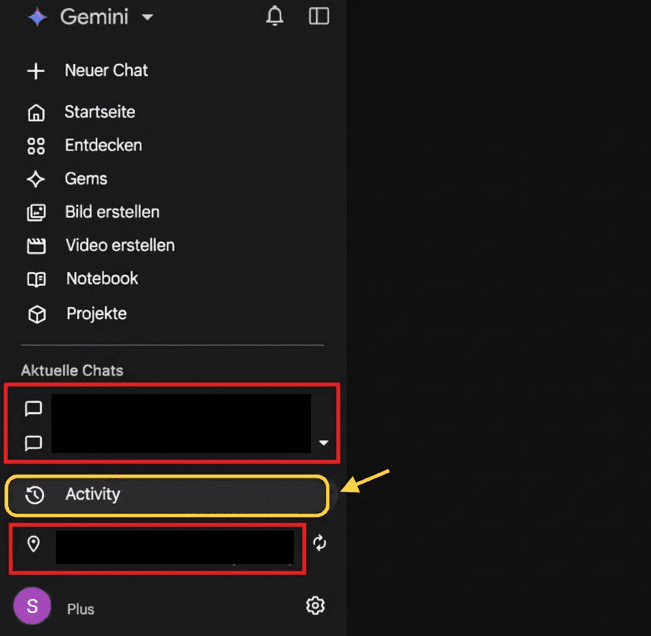
Google’s documentation also describes accessing History through the Settings menu.
Alternatively, you can open the Gemini History page directly.
In my case, the Activity option was easy to locate once I knew where to look.
Insert Screenshot 1 — Gemini sidebar showing the Activity option.
Step 2: Understand the Gemini History Page
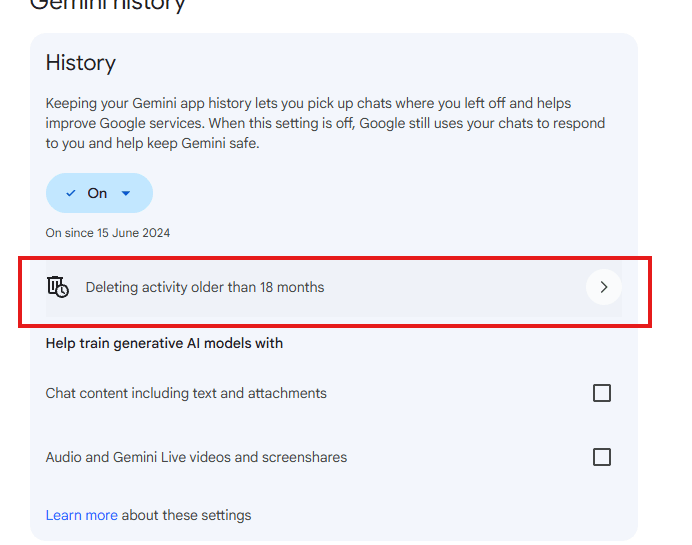
After opening Activity, I reached a page called Gemini history.
This page contains the main privacy settings.
In my account, I could see:
- History turned on
- Automatic deletion of history older than 18 months
- A separate checkbox for chat content, including text and attachments
- Another checkbox for audio, Gemini Live videos and screenshares
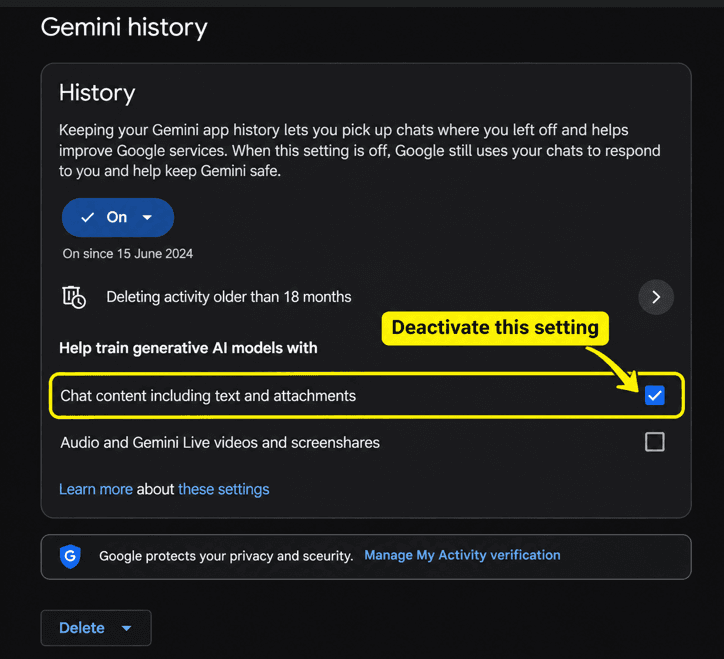
This is the important part of the update.
The controls are no longer limited to a single History switch.
On my account, the main History setting had been enabled since June 15, 2024.
The chat-content training checkbox was also checked, while the separate audio and Gemini Live checkbox was unchecked.
That gave me a clear view of what needed changing.
Insert Screenshot 2 — Gemini History settings with the two separate training options.
Step 3: Turn Off AI Training Without Disabling History
If your goal is to keep your conversations but stop future chat content from being used for generative AI model training, leave History turned on.
Instead, find the section labeled:
Help train generative AI models with
Below this heading, look for:
Chat content including text and attachments
The exact wording may vary slightly between versions or languages.
To opt out:
- Leave the main History setting on.
- Find the chat-content training checkbox.
- Uncheck it.
- Confirm Turn off if Gemini asks for confirmation.
Google’s documentation says that when this option is disabled, future chat content will not be used to train generative AI models unless you provide feedback.
This setting is different from disabling History entirely.
That distinction matters because History controls whether conversations remain available to revisit.
Important: The screenshot I captured shows the checkbox before deactivation. It documents where the control is located, not a completed opt-out.
Insert Screenshot 3 — Highlight the checkbox beside “Chat content including text and attachments.”
Step 4: Check the Separate Gemini Live Setting
There is another privacy option worth reviewing.
Below the chat-content checkbox, Gemini displays:
Audio and Gemini Live videos and screenshares
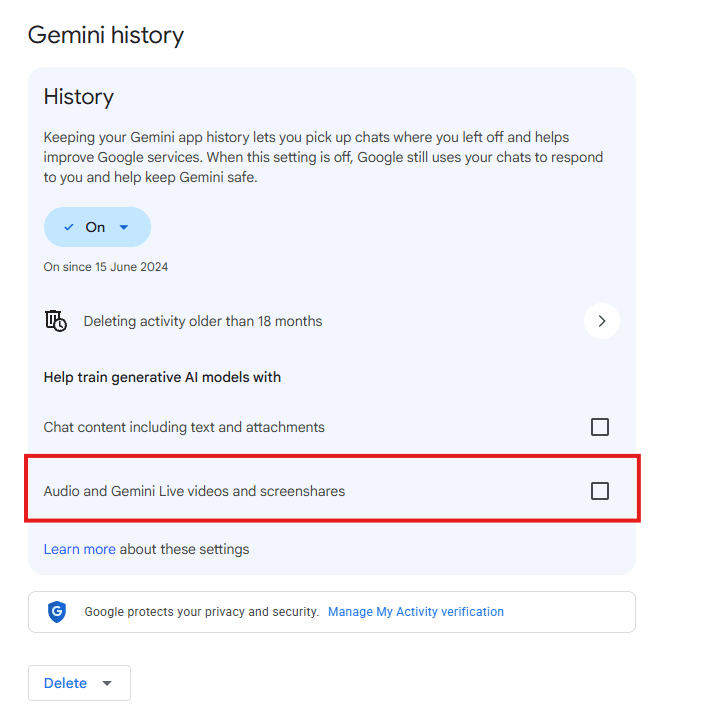
This controls whether Google can use certain audio and Gemini Live recordings to help improve its services, including generative AI models.
In my account, this checkbox was already unchecked.
Google says this option is off by default, while the text-and-attachments training setting is generally on by default for users over 18.
I would check both settings rather than assume disabling one automatically changes the other.
There is also an important distinction between recordings and transcripts.
Google explains that chat-content settings can affect how transcripts and other chat information are used, while the separate audio and Gemini Live setting applies to recordings and screenshares.
Anyone concerned about these data uses should review both controls.
Step 5: Test Whether Your Gemini Chat History Still Works
To examine the history feature, I created a simple test conversation in Gemini.
I used this prompt:
“This is a test for my TechJournalAI article about Gemini privacy settings. Explain in three sentences what artificial intelligence is.”
Gemini generated an explanation, and the conversation appeared in my chat sidebar.
This confirmed that conversation history was functioning with History enabled.
The response itself was not particularly important. I simply wanted an identifiable conversation that could be found again.
For a complete before-and-after test, the next step is to disable the chat-content training checkbox, create another harmless conversation, refresh the browser, and reopen that conversation from the sidebar.
That final verification is worth doing because it directly tests the combination of settings described in Google’s announcement.
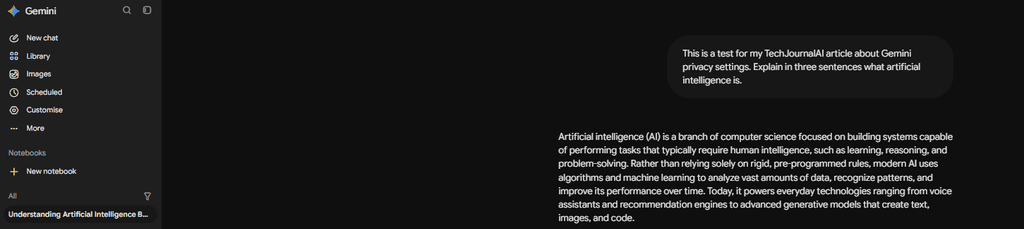
What I verified: The separate training control was available in my account, History was enabled, and a test conversation appeared in the sidebar.
What I have not independently verified: Google’s internal handling of training data, or a completed after-opt-out retention test.
For the internal data-handling claims, I rely on Google’s published privacy documentation.
Insert Screenshot 4 — Gemini test conversation visible in chat history.
Does Turning Off AI Training Delete Existing Chats?
No. Disabling the chat-content training setting is not the same as deleting your Gemini History.
If History remains on, Google can continue storing your conversations according to your retention settings.
You can also delete individual conversations or choose a different automatic deletion period.
Google currently offers the following auto-delete options:
- 3 months
- 18 months
- 36 months
- Do not auto-delete
In my account, the setting was configured to delete history older than 18 months.
If you want shorter retention, you can change that separately.
One warning: opting out of future AI training does not automatically reverse all processing of conversations that occurred before the setting was changed.
Can Google Still Read My Chats After I Disable Training?
This is probably the most important privacy limitation.
Turning off generative AI model training does not mean Google stops using or reviewing your conversations entirely.
According to Google’s Gemini Apps Privacy Hub, the company may still process chats to provide the service, improve other aspects of Google services, handle feedback and protect users.
Google also says some conversations may be reviewed by humans for purposes other than generative AI model training.
When conversations are reviewed by service providers, the reviewed information can be retained for up to three years, even if you later delete the conversation from your history.
Google states that reviewed conversations are separated from your account before being provided to those reviewers.
This means the new setting is a genuine training opt-out, but it is not a guarantee that no human or automated system will ever process your chat content.
I think that distinction should be much clearer whenever people discuss AI privacy.
What Happens If I Turn Off Gemini History Completely?
Turning off History is a different decision.
Google says future conversations will no longer appear in your Gemini History.
However, Google may still retain those conversations for approximately two months for service operation, feedback processing and safety-related purposes.
Switching History off can also limit access to certain Connected Apps.
For example, Google’s documentation states that some services are unavailable when History is disabled.
That is why I would not turn off the main History setting if my only goal were to opt out of generative AI training.
The new checkbox is designed to handle that preference separately.
Does This Also Apply to Gmail, Google Drive and Other Google Services?
Not automatically.
Google says the Gemini chat-content training setting applies to Gemini History.
It does not necessarily change the privacy settings or data handling of other Google products.
That includes information managed by connected services.
For example, connecting Google Workspace or Google Photos to Gemini may involve separate data processing rules.
I would not assume that switching off one checkbox in Gemini changes every Google account privacy setting.
If you use several Google AI products, it is worth checking their individual data controls.
Is the New Privacy Setting Available in Germany?
Yes, it was available in my personal Gemini account in Germany on November 21, 2026.
I could see the main History switch and both separate training controls.
Google announced that the updated privacy settings would roll out globally over several weeks beginning November 16.
That means another user may not necessarily see the same layout immediately.
If the new checkbox is missing, I would check again after the rollout progresses rather than assume the account is misconfigured.
Google Workspace accounts can also behave differently because administrators may control certain history settings.
Is This Privacy Change Actually Useful?
I think it is a meaningful improvement.
For someone using Gemini occasionally, disabling all history might not be a major inconvenience.
But if you regularly return to old conversations, losing that history can make an AI assistant considerably less useful.
The new settings give users more control over how their conversations are used without forcing them to sacrifice the convenience of saved chats.
At the same time, I wouldn’t describe this as complete privacy.
Google continues processing some information for service and safety purposes, and data from connected applications may be governed by separate policies.
So I see the update as a better level of control, not as a promise of absolute confidentiality.
Bottom Line
Google’s November 2026 Gemini update makes it possible to keep chat history enabled while opting out of the use of future chat content for generative AI model training.
To configure this:
- Open Gemini.
- Go to Settings → History, or click Activity.
- Keep History enabled.
- Uncheck Chat content including text and attachments.
- Confirm the change.
- Review the separate audio and Gemini Live training setting.
I checked the new settings in my own Gemini account in Germany and confirmed that the separate controls were available.
The remaining limitation is important: disabling training does not eliminate all Google data processing, human review or retention.
For me, the biggest advantage is having more control without losing access to previous conversations.
That’s an improvement worth understanding, especially for anyone who uses Gemini regularly for work, research or everyday tasks.


Pingback: Gemini “Something Went Wrong (13)” Error: 7 Fixes