
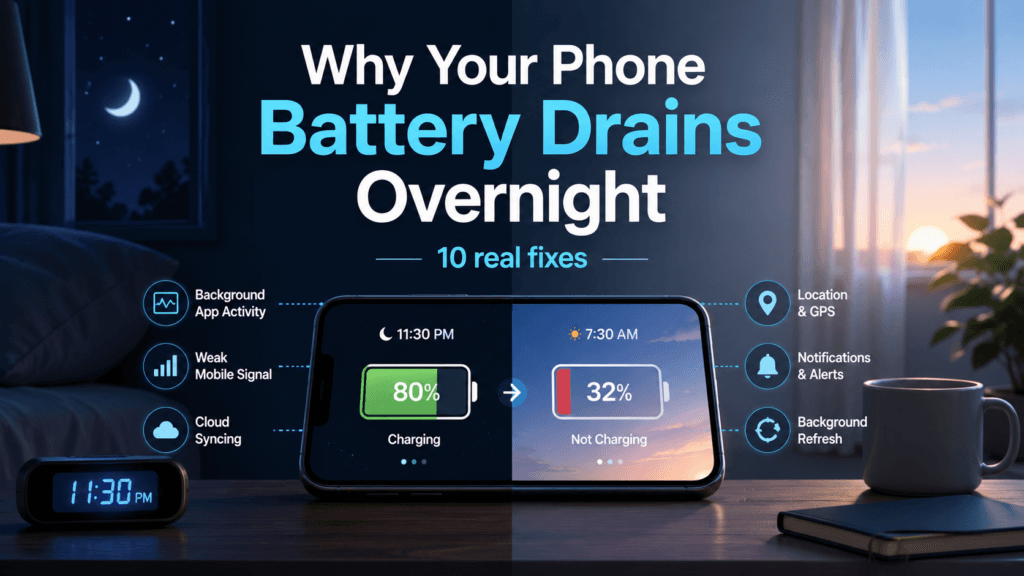
Why Your Phone Battery Drains Overnight: 10 Real Fixes
A phone battery can lose charge overnight because apps continue running, accounts keep syncing, the phone struggles with a weak mobile signal, or a recent update is still completing background tasks.
Start by checking the battery report instead of switching off random settings. It usually shows whether the drain came from an app, the screen, mobile network activity, or the operating system.
Read also : iPhone 18 Pro Price Rumors: Could It Cost $300 More?
How much overnight battery drain is normal?
There is no universal percentage because phones, battery age, signal strength, apps, and settings differ.
A small drop while the phone remains connected to Wi-Fi and mobile networks is expected. A repeated loss of 15%, 20%, or more while the phone is unused deserves investigation, especially when the device feels warm in the morning.
1. Check what used the battery
This is the most important step.
On iPhone
Open:
Settings → Battery
Review the activity graph and app list. Apple’s battery screen can identify background activity, weak cellular coverage, ongoing updates, and device setup as possible reasons for unusually high consumption.
On Android
Open:
Settings → Battery → Battery usage
The exact wording varies between manufacturers. Look for apps or system services that consumed power during the hours when you were asleep.
Pay particular attention to:
- Apps showing long background activity
- Mobile network or cellular standby
- Photo backup
- Messaging apps
- Location services
- System updates
Do not remove an app based only on its total percentage. A high percentage can simply mean very little else used power.
2. Restart the phone
A restart can stop a process that has become stuck and continues running in the background.
Restart the phone before changing several settings at once. Then charge it to a known percentage and check the result the next morning.
Samsung also recommends restarting as part of its battery-drain troubleshooting guidance.
3. Restrict a battery-draining app
When one app clearly dominates the overnight report, limit its background activity.
On iPhone
Open:
Settings → General → Background App Refresh
Disable refresh for the specific app rather than switching it off for everything.
You can also check the app’s location permission under:
Settings → Privacy & Security → Location Services
On Android
Open the app information screen and look for:
Battery → Restricted
or
Allow background activity
Menu names vary by phone.
Restricting background use can delay notifications, uploads, message syncing, fitness tracking, or location-based features. Apply it only to apps that do not need to remain active.
4. Test Airplane Mode for one night
Poor cellular reception can cause a phone to repeatedly search for a stronger connection. Apple identifies low cellular coverage as a cause of increased battery use, and Samsung similarly recommends moving to an area with better signal.
To test this:
- Note the battery percentage before sleeping.
- Enable Airplane Mode.
- Leave the phone unplugged overnight.
- Compare the loss with a normal night.
If the drain drops significantly, weak reception or mobile-network activity is probably involved.
Airplane Mode blocks normal calls and mobile data. Do not use this test when you must remain reachable.
5. Disable unnecessary overnight syncing
Cloud services may upload photos, download email, synchronize files, or complete backups while the phone is idle.
Check:
- Google Photos or iCloud Photos
- Cloud storage apps
- Email accounts
- Podcast and music downloads
- Messaging backups
- Fitness or health apps
Do not permanently disable useful backups without understanding the consequence. Instead, schedule them for charging periods or restrict large uploads to Wi-Fi.
6. Install system and app updates
Battery drain can result from a software bug, but updates can also temporarily increase consumption while indexing files, optimizing apps, or completing setup.
Apple notes that an ongoing iOS update or device setup can affect battery life until the background work finishes.
Install available operating-system and app updates, restart the phone, and give it a day or two before judging the result.
Do not assume every problem immediately after an update requires a factory reset.
7. Turn on Battery Saver or Low Power Mode
Battery-saving modes reduce background activity and some performance-intensive features.
- iPhone: Settings → Battery → Low Power Mode
- Android: Settings → Battery → Battery Saver
- Samsung: Settings → Battery → Power saving
Google recommends Battery Saver as a standard way to extend Android battery life. Samsung provides similar power-saving and optimization controls.
This is useful as a test. If overnight drain improves dramatically, background processes are probably contributing.
8. Turn off Always-On Display
Phones with an Always-On Display continue showing a clock, notifications, or wallpaper while locked.
Disable it for one night and compare the result.
Also check whether the screen is waking repeatedly because of:
- Notifications
- Raise to wake
- Tap to wake
- Motion detection
- A loose or defective case pressing buttons
The display may not be the main cause, but it is easy to rule out.
9. Check battery health
Lithium-ion batteries lose capacity as they age. An older battery may drain faster even when software is working normally.
On iPhone
Open:
Settings → Battery → Battery Health & Charging
Review maximum capacity and any service warning.
On Android
Battery-health information depends on the manufacturer. Some phones include diagnostics under Battery settings or the manufacturer’s support app. Samsung devices can use diagnostics provided through Samsung’s support tools.
A battery that drops suddenly, shuts down before reaching 0%, swells, or makes the phone unusually hot should be inspected rather than optimized through software.
Stop using a device with a swollen battery.
10. Test Safe Mode or reset only as a last step
On many Android phones, Safe Mode temporarily disables downloaded apps. If overnight drain disappears in Safe Mode, a third-party app is likely responsible.
The Safe Mode procedure differs by manufacturer, so use the official instructions for your model.
A factory reset should be the final option because it removes data and settings. Before resetting:
- Back up photos, messages, authentication codes, and files.
- Confirm the backup can be restored.
- Remove or transfer banking and authenticator access where necessary.
- Test simpler fixes first.
Do not factory-reset an iPhone or Android phone merely because it lost several percent on one night.
A quick overnight test
Use this simple process:
- Charge the phone to approximately the same level.
- Restart it.
- Record the battery percentage and time.
- Leave it unused for six to eight hours.
- Check Battery usage in the morning.
- Repeat the next night with Airplane Mode enabled.
This comparison helps separate app activity from mobile-network drain.
When the battery may need replacing
Consider professional battery service when:
- Drain continues after background activity is controlled
- Battery health shows significant wear or a service warning
- The phone shuts down unexpectedly
- The battery percentage jumps or falls suddenly
- The phone becomes hot while idle
- The battery is swollen
Heat, swelling, smoke, or chemical smells require immediate attention. Disconnect the phone from charging and stop using it.
Final recommendation
When your phone battery drains overnight, check Battery usage first. The most common practical areas to investigate are background apps, weak signal, cloud syncing, recent updates, and battery health.
Do not disable every feature or perform a factory reset at the beginning. Change one thing at a time and compare the overnight result. That is the fastest way to find the actual cause.


Pingback: iPhone 18 Pro Price Rumors: Could It Cost $300 More?
Pingback: AI Cyberattacks in 2026: 7 Ways to Protect Yourself