
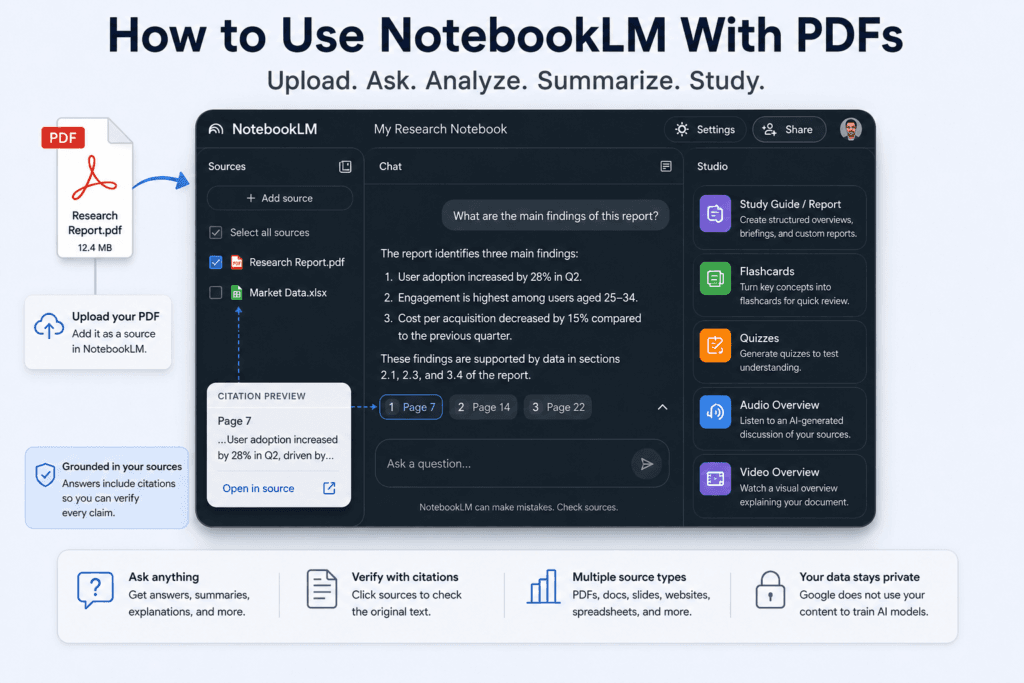
NotebookLM can turn a PDF into a searchable source that you can question, summarize, compare, and convert into study materials.
The basic process is straightforward: create a notebook, upload the PDF, wait for processing, and ask questions in the chat panel. The important part is learning how to ask focused questions and verify NotebookLM’s answers against the document.
NotebookLM is most useful for reports, academic papers, course material, manuals, policies, transcripts, and other documents where you need to understand or reorganize existing information. It is less suitable when you need information that is not contained in the uploaded sources.
Verification note: This guide is based on Google’s current NotebookLM documentation. TechJournalAI has not yet independently tested every interface step or generation feature described below.
Quick answer: How to Use NotebookLM With PDFs
- Open NotebookLM in a desktop browser.
- Sign in with a supported Google account.
- Select Create new notebook.
- Choose Upload a source or Add source.
- Select the PDF from your computer.
- Wait for NotebookLM to process the document.
- Select the PDF in the Sources panel.
- Ask a specific question in the chat box.
- Open the citations in the response to verify the answer.
NotebookLM supports local PDF uploads along with Word documents, text files, Markdown files, spreadsheets, presentations, websites, Google Drive files, audio, images, and other source types. A single uploaded source can contain up to 500,000 words or be up to 200 MB. Google states that there is no separate page limit.
Read also : NotebookLM PDF Upload Failed? 7 Ways to Fix It
What NotebookLM does with an uploaded PDF
NotebookLM does not simply store the document as an attachment. It uses the uploaded file as source material for its chat and generation tools.
After processing the PDF, you can use NotebookLM to:
- Ask questions about specific sections
- Generate a summary
- Extract key findings or arguments
- Compare information across several PDFs
- Create a briefing document
- Build a study guide
- Generate flashcards or quizzes
- Create an Audio Overview
- Generate a Video Overview
- Produce mind maps, reports, infographics, slide decks, and data tables where available
NotebookLM is designed to ground its chat answers in the sources selected in the notebook. Its responses can contain inline citations that link back to the relevant source passage.
That does not mean every answer is automatically correct. You should still open the citations and compare the response with the original PDF.
What you need before starting
You need:
- A Google account
- Access to NotebookLM in your country or organization
- A supported desktop browser
- A PDF without upload restrictions
- Permission to use the document
- A readable, preferably text-searchable PDF
NotebookLM is available through a browser in supported regions. Access through work or school accounts can depend on the organization’s Google Workspace settings and licensing.
Check whether the PDF contains searchable text
A PDF may look normal while containing only scanned page images.
Before uploading it:
- Open the PDF on your computer.
- Try selecting a sentence with your mouse.
- Copy it.
- Paste it into a text editor.
If the pasted text is readable, the PDF probably contains a usable text layer.
If nothing can be selected, or the pasted text is garbled, the PDF may require optical character recognition, commonly called OCR. Run OCR using a trusted PDF application before uploading it.
Do not assume NotebookLM will accurately interpret every low-quality scan, unusual layout, handwritten note, or complex table.
Step 1: Create a new notebook
Open NotebookLM and sign in.
Select Create new notebook. NotebookLM will open a source-upload window where you can add a local file or choose another supported source type.
A notebook acts as a workspace. You can add one PDF or combine several related sources.
For example, a notebook about a software product could contain:
- The official user manual
- Release notes
- A pricing document
- An internal setup guide
- A troubleshooting PDF
Keeping closely related material in one notebook makes comparisons easier. Mixing unrelated documents can make source selection and question wording more important.
Step 2: Upload the PDF
Select the option to upload a local file and choose the PDF.
NotebookLM currently accepts PDF files with a maximum of 500,000 words per source or 200 MB per local upload. Copy-protected PDFs cannot be imported.
After the upload starts, wait for the source to finish processing before asking detailed questions.
What you should see
Once processing is complete, the PDF should appear in the Sources panel.
Selecting the source opens its source view and an automatically generated Source Guide. NotebookLM can provide a broad source summary there, or you can request a more focused summary through chat.
A useful naming rule
Rename files before uploading them when their original names are unclear.
Instead of:
document-final-v7.pdf
use:
2026 Employee Travel Policy.pdf
Clear file names make it easier to refer to the correct source in prompts, especially when a notebook contains several PDFs.
Step 3: Select the source you want NotebookLM to use
NotebookLM displays a checkbox beside each source.
Select the PDF or PDFs that should be included in the current question. Deselect sources that are irrelevant.
Google states that NotebookLM uses the selected sources when producing chat responses. You can therefore limit a question to one document or compare several documents in the same notebook.
This matters when documents contain conflicting information.
For example, suppose your notebook contains:
Software Manual 2025.pdfSoftware Manual 2026.pdf
Select only the 2026 manual when asking about the current interface. Select both when asking what changed between versions.
Step 4: Ask useful questions about the PDF
Vague prompts usually produce broad answers.
Instead of:
Summarize this PDF.
try:
Summarize the five main recommendations in this PDF. For each recommendation, explain the supporting evidence and cite the relevant section.
Other useful prompts include:
For a research paper
What question is this paper trying to answer? Summarize the methodology, main findings, and limitations separately.
For a long report
List the report’s main conclusions. Separate findings supported by data from recommendations made by the authors.
For a manual
Explain how to configure two-factor authentication. Give the steps in the order used in the manual and mention any prerequisites.
For a policy document
What expenses are reimbursable under this policy? Include exceptions, approval requirements, and any stated limits.
For a contract or terms document
Identify clauses related to cancellation, automatic renewal, data retention, and liability. Do not provide legal advice.
For several PDFs
Compare the recommendations in “Report A” and “Report B.” Show where they agree, where they conflict, and which source supports each point.
Mentioning the source name can help NotebookLM focus when several documents are selected. Google specifically recommends asking focused questions rather than relying only on generic summary requests.
Step 5: Verify the answer using citations
NotebookLM can cite direct text and images from the selected sources.
To verify a response:
- Find the citation number beside a claim.
- Hover over it to preview the supporting passage.
- Select the citation.
- Check the original passage in context.
- Confirm that NotebookLM has not removed an important qualification or exception.
Google states that selecting a citation navigates to the corresponding source location.
Do not treat citations as automatic proof
A citation may point to a relevant passage while the generated interpretation is still too broad.
Check for:
- Exceptions in the following paragraph
- Footnotes
- Table headings
- Date ranges
- Units
- Conditions attached to a recommendation
- Whether the text describes a proposal or an implemented rule
For legal, financial, medical, safety, or compliance decisions, use NotebookLM as a document-navigation tool rather than the final authority.
Step 6: Save useful answers as notes
When NotebookLM produces a useful answer, select Save to note.
Saved responses can preserve tables and inline citations. NotebookLM also allows users to create their own notes and convert notes into sources. Google currently documents a limit of up to 1,000 notes per notebook.
This is useful when turning a long PDF into:
- Revision notes
- A project brief
- A list of unanswered questions
- A glossary
- A structured research outline
- A collection of verified quotations
Be aware that deleted notes currently cannot be recovered through NotebookLM.
Step 7: Create a report or study guide
Open the Studio panel.
Depending on your account and current interface, NotebookLM can create reports such as:
- FAQ
- Study guide
- Briefing document
- A custom report
- An AI-suggested report format
Generated reports can be exported to Google Docs. Reports containing data tables may also offer an export to Google Sheets. Changes made in the exported file do not synchronize back to NotebookLM.
Example custom report prompt
Create a study guide for a university student. Include key concepts, definitions, three likely exam topics, and five questions that require explanation rather than memorization.
When reports are useful
Reports work well when the PDF already contains clear structure and reliable information.
They work less well when:
- The PDF is poorly scanned
- Tables are difficult to interpret
- Several sources contradict each other
- The document assumes missing background knowledge
- You need exact reproduction of the original layout
Always verify generated reports before sharing or submitting them.
Step 8: Generate flashcards and quizzes
In the Studio panel, choose Flashcards or Quizzes.
NotebookLM lets you adjust the difficulty, number of items, focus, and custom instructions. Flashcards can be marked as understood or missed, and flashcard sets can be downloaded as CSV files.
Example flashcard prompt
Create medium-difficulty flashcards covering definitions, processes, and exceptions. Avoid cards that can be answered with only yes or no.
Example quiz prompt
Create 15 questions based only on chapters 3 and 4. Include explanations for incorrect answers and focus on practical application.
Study-material limitation
Generated questions can oversimplify difficult material or focus on minor details. Review the cards before relying on them for an exam or professional certification.
Step 9: Create an Audio Overview
Select Audio Overview in the Studio panel.
NotebookLM can generate an AI-hosted discussion based on the selected sources. Available formats documented by Google include a detailed discussion, a short briefing, a critique, and a debate format. Options can vary by language and account.
You can add a custom instruction such as:
Focus on the report’s recommendations, the evidence behind them, and the limitations acknowledged by the authors. Assume the listener has no specialist background.
Audio Overviews can be useful for revision or getting a broad understanding while travelling.
They are not a substitute for reading the document. Google warns that AI-generated audio can contain inaccuracies or audio glitches.
Step 10: Create a Video Overview
Select Video Overview in the Studio panel.
NotebookLM can generate a narrated visual explanation based on the selected sources. The tool may allow customization of language, format, visual style, and instructions. Some formats have age, language, or plan restrictions.
A useful instruction could be:
Explain the process described in this manual for a new employee. Focus on the sequence of actions, approval points, and common mistakes.
Video Overviews may help with presentation and revision, but they are generated interpretations. Google states that the voices and visuals may contain inaccuracies or glitches, and generation can take considerable time.
How to confirm that NotebookLM understood the PDF
Do not judge success only by whether the upload completed.
Run these checks:
1. Ask for a specific fact
Choose a fact that you already know is in the PDF.
What is the deadline stated in section 4.2?
Check whether the answer and citation are correct.
2. Ask for a structured extraction
Create a table containing each requirement, its responsible person, and its deadline.
Compare several rows against the original document.
3. Test a negative question
Ask about something that is not in the PDF.
What does the document say about international shipping?
NotebookLM should indicate when the selected sources do not contain the answer. Google states that NotebookLM is designed to answer from the provided source material and may not respond when the requested information is absent.
4. Check difficult content
Test one table, image, footnote, or appendix. These areas are more likely to expose extraction problems.
Common problems when uploading PDFs
The PDF will not upload
Google lists three direct reasons for failed imports:
- The document exceeds 500,000 words
- The local file exceeds 200 MB
- The PDF is copy-protected
Check the file size and PDF security settings.
If the file is protected, obtain an unrestricted copy from the document owner. Do not attempt to remove protection from files you do not have permission to modify.
The PDF uploads, but the answers are poor
Likely causes include:
- The PDF is a scan without OCR
- The scan quality is low
- The document uses complex columns
- Tables do not extract cleanly
- The question is too broad
- Too many unrelated sources are selected
- The answer depends on a chart or image that was interpreted incorrectly
Try:
- Running OCR
- Uploading a cleaner copy
- Selecting only the relevant source
- Asking about one section at a time
- Naming the PDF in the question
- Requesting citations for every major claim
NotebookLM says the answer is not in the sources
First check whether the information is actually present.
Then ask a more precise question using terms that appear in the document.
For example, replace:
What is the refund policy?
with:
What does the document state about cancellation, reimbursement, repayment, or credits?
Do not push NotebookLM to invent an answer that the PDF does not provide.
A citation points to the wrong place
Open the source and search manually for the relevant term.
The response may have combined information from several passages or misunderstood the question. Rephrase it and narrow the selected sources.
Tables are summarized incorrectly
Ask NotebookLM to explain:
- The column headings
- The units
- The period covered
- Whether values are totals, averages, or estimates
Then compare the extracted values with the original table.
For important numerical work, copy the figures into a spreadsheet and verify them independently.
NotebookLM PDF limits and plan restrictions
Google’s current Standard limits include:
- 100 notebooks per user
- 50 sources per notebook
- 50 chat queries per day
- 3 Audio Overviews per day
- 3 Video Overviews per day
- 10 reports per day
- 10 flashcard generations per day
- 10 quiz generations per day
Paid NotebookLM access through Google AI plans or qualifying Workspace plans increases these limits. Exact limits vary between Plus, Pro, and Ultra tiers and are explicitly marked by Google as subject to change.
Because pricing and availability differ by region and subscription, check the current Google AI plan page before paying.
Is the free version enough?
The Standard tier should be sufficient for:
- Occasional PDF summaries
- Studying one course or project
- Reviewing several reports
- Testing Audio or Video Overviews
- Basic research with a limited number of sources
A paid tier becomes more relevant when you:
- Maintain many notebooks
- Work with more than 50 sources in one notebook
- Generate many reports or study aids
- Reach the daily chat limit
- Use NotebookLM as part of a regular professional workflow
Do not upgrade only for PDF support. Standard NotebookLM already supports PDF uploads.
Privacy and security considerations
NotebookLM processes uploaded files, generated outputs, and chat history to provide its research features.
Google states that NotebookLM content is not used to directly train its foundational AI models unless the user chooses to provide feedback. However, when a user submits thumbs-up or thumbs-down feedback, Google may collect the associated prompts, uploads, responses, and generated content for review and product improvement. Google advises users not to include confidential or sensitive information in feedback.
Google also states that Workspace and Workspace for Education uploads, queries, and responses are not reviewed by human reviewers, even when feedback is submitted, and are not used to train AI models.
Do not upload a PDF simply because the tool accepts it
Before uploading, ask:
- Does the file contain personal data?
- Does it include customer or employee information?
- Is it covered by a confidentiality agreement?
- Does company policy permit uploading it to an external AI service?
- Do you have the right to use and share the document?
- Would redaction remove unnecessary sensitive information?
For business, legal, healthcare, financial, or regulated documents, consult your organization’s security and compliance requirements first.
What NotebookLM does well with PDFs
NotebookLM is particularly useful for:
- Navigating long documents
- Asking follow-up questions
- Comparing several related sources
- Finding passages through citations
- Creating study material
- Producing different summaries for different audiences
- Turning source material into reports or presentations
- Keeping research material organized by notebook
Its strongest advantage is not basic summarization. It is the ability to continue questioning the same set of selected sources while retaining citations and context.
What NotebookLM does poorly
NotebookLM is weaker when:
- The PDF is a low-quality scan
- The document contains complex layouts
- Precise table extraction is required
- The answer depends on information outside the source
- Exact legal or technical interpretation is necessary
- The user assumes citations eliminate hallucinations
- Documents conflict without clearly stated dates or versions
- Generated audio or video is treated as authoritative
It also does not replace a dedicated PDF editor. You cannot rely on it to change page layouts, repair damaged files, redact information securely, or apply legally valid signatures.
Who should use NotebookLM with PDFs?
NotebookLM is a good fit for:
- Students reviewing course material
- Researchers comparing papers
- Employees reading manuals and policies
- Managers summarizing reports
- Writers organizing source material
- Analysts exploring non-sensitive documents
- Trainers creating quizzes and briefing material
Who should avoid it?
Avoid or restrict its use when:
- Your organization prohibits external AI processing
- The PDF contains highly sensitive information
- You need guaranteed numerical accuracy
- The file is protected by licensing restrictions
- The document requires legal interpretation
- You cannot verify the generated answer
- You need exact visual or layout analysis
- You need information beyond the selected sources
A standard PDF reader, spreadsheet tool, OCR application, legal review, or specialist document-analysis system may be more appropriate in those cases.
NotebookLM vs a general AI chatbot for PDF analysis
NotebookLM is a better choice when you want a persistent notebook built around a defined source collection, inline citations, follow-up questions, reports, and study materials.
A general AI chatbot may be a better option when you need:
- Broader outside knowledge
- Writing assistance beyond the source
- Code generation
- Web research
- More open-ended brainstorming
- Integration with other tools
NotebookLM deliberately focuses on the material in the notebook. That focus is useful for grounded research, but limiting when the task requires information not present in the PDF.
Final recommendation
NotebookLM is worth using for PDF analysis when the document is readable, the information is not too sensitive, and you are prepared to verify important answers.
The most effective workflow is:
- Upload a text-searchable PDF.
- Select only the sources needed for the task.
- Ask narrow, specific questions.
- Open and check the citations.
- Save verified answers as notes.
- Generate reports, flashcards, quizzes, or overviews only after confirming that NotebookLM understood the source.
Do not treat the generated summary as a replacement for the original document. Use NotebookLM to find, reorganize, and explain information faster—not to remove the need for judgment.
Frequently asked questions
Can NotebookLM summarize an entire PDF?
Yes. NotebookLM can create a broad source summary and answer targeted questions about selected parts of the document. For long PDFs, focused prompts usually produce more useful results than a generic summary request.
What is the maximum PDF size in NotebookLM?
Google currently allows up to 500,000 words per source or 200 MB for a local upload. It does not specify a separate page limit.
Can NotebookLM read scanned PDFs?
Results depend on whether usable text can be extracted from the scan. Running OCR before uploading is safer when the PDF contains only page images.
Can NotebookLM analyze several PDFs together?
Yes. You can add several PDFs to one notebook and select which sources NotebookLM should use for a question.
Does NotebookLM use information from the internet when answering PDF questions?
Standard NotebookLM chat is designed to answer from the selected notebook sources. It may decline to answer when the requested information is not present. Separate source-discovery and higher-tier features can have different capabilities.
Is NotebookLM free?
NotebookLM offers a Standard tier through a Google account. Google also offers higher-limit access through Google AI plans, Google Cloud, and qualifying Workspace plans.
Are NotebookLM answers always accurate?
No. Citations make answers easier to verify, but generated summaries, interpretations, audio, and video can still contain mistakes. Important claims should be checked against the original PDF.
Suggested external sources
- Google NotebookLM Help: Learn about NotebookLM
- Google NotebookLM Help: Add or discover new sources
- Google NotebookLM Help: Use chat
- Google NotebookLM Help: Frequently asked questions
- Google NotebookLM Help: Upgrade NotebookLM
- Google NotebookLM Help: Privacy and Terms of Use
- Google NotebookLM Help: Generate Flashcards or Quizzes
- Google NotebookLM Help: Generate Audio and Video Overviews
Featured image concept
A clean desktop workspace showing a PDF document entering NotebookLM, followed by three outputs: a cited chat response, a study guide, and an Audio Overview. Avoid excessive floating AI symbols or generic robot imagery.
Featured image alt text: PDF uploaded to Google NotebookLM with cited answers and study tools
Pingback: NotebookLM vs ChatGPT for PDFs: Which Is Better?
Pingback: Claude Code for Beginners: What Can It Do?
Pingback: How to Use Perplexity for Reliable Research