
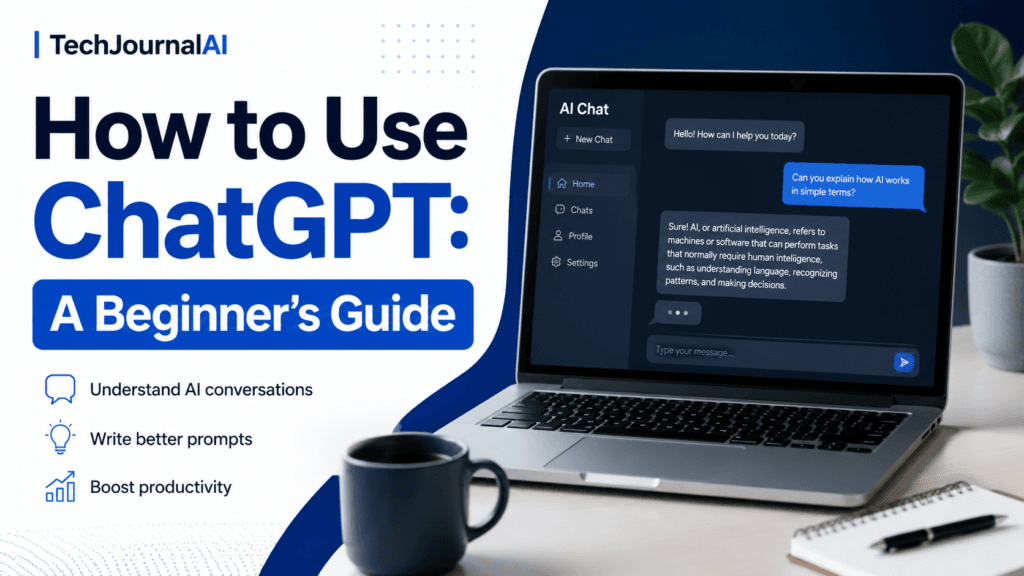
ChatGPT can look confusing the first time you open it. There is an empty message box, a few buttons, and no clear instruction telling you what to ask.
The good news is that you do not need technical knowledge to use it. You simply explain what you need in normal language, much like you would explain a task to another person.
This guide covers the basics: how to start, what to ask, how to improve weak answers, and what mistakes beginners should avoid.
What Is ChatGPT?
ChatGPT is an AI assistant created by OpenAI. It can answer questions, explain topics, rewrite text, summarize information, generate ideas, translate content, and help with everyday tasks.
You can use it for things such as:
- Writing an email
- Understanding a difficult subject
- Planning a trip
- Improving a CV
- Creating a study plan
- Comparing products
- Brainstorming business ideas
- Fixing or explaining code
It is useful, but it is not automatically correct. Important facts should still be checked, especially for medical, legal, financial, or current information.
Do You Need an Account?
You can start using ChatGPT without creating an account in some cases. However, signing in gives you access to features such as saved conversations and additional tools, depending on your plan and device.
To begin:
- Open ChatGPT.
- Sign in or create an account if needed.
- Click inside the message box.
- Type what you want help with.
- Press Enter or click the send button.
That is enough to start your first conversation.
How to Start Your First Chat
You do not need to learn special commands. Write naturally.
For example:
Explain inflation in simple language.
Or:
Write a polite email asking my landlord to repair the heating.
Or:
Create a seven-day meal plan for two people with a budget of €80.
The clearer your request is, the more useful the answer usually becomes.
A vague request such as:
Help me with a CV.
will probably produce a broad answer.
A stronger request would be:
Help me improve my CV for an IT support job in Germany. I have three years of experience with Windows, Microsoft 365, printers, and user support. Keep it professional and no longer than two pages.
The second version gives ChatGPT a clear task, context, audience, and limitation.
How to Write Better Prompts
A prompt is simply the message or instruction you give to ChatGPT.
Good prompts usually include four things:
1. The task
Explain what you need.
Example:
Write a product comparison.
2. The context
Add the information ChatGPT needs to understand the situation.
Example:
Compare two budget laptops for office work and video calls.
3. The preferred format
Say how you want the answer presented.
Example:
Use a simple table followed by a recommendation.
4. Any limits
Mention length, tone, budget, location, or other restrictions.
Example:
Keep the recommendation under €800 and focus on battery life.
A complete prompt could look like this:
Compare two Windows laptops under €800 for office work, video calls, and light photo editing. Use a table and recommend the better option for battery life.
OpenAI recommends being clear, specific, and willing to refine the prompt after seeing the first answer.
You Can Continue the Conversation
One of ChatGPT’s biggest advantages is that you do not need to start again every time.
After receiving an answer, you can write:
Make it shorter.
Explain that in simpler language.
Give me three more examples.
Rewrite it in a more professional tone.
Add information for someone living in Germany.
Turn this into a checklist.
ChatGPT can use the earlier conversation as context, so each follow-up can improve the result.
This often works better than trying to write one perfect prompt from the beginning.
Read also Claude Code for Beginners: What Can It Actually Do?
Useful Beginner Examples
Writing an email
Write a polite email to my manager explaining that I will be 30 minutes late because of a train delay.
Learning something
Explain how compound interest works using a simple example with €1,000.
Comparing products
Compare the iPhone 15 and Samsung Galaxy S24 for camera quality, battery life, and everyday use.
Planning
Create a three-day travel plan for Prague for two adults. Include major attractions, restaurants, and approximate costs.
Rewriting text
Rewrite the following message so it sounds professional but not unfriendly: [paste message]
Generating ideas
Give me ten article ideas for a beginner-friendly AI and technology website.
Common Beginner Mistakes
Asking questions that are too broad
“Tell me about technology” is too vague.
A better prompt is:
Explain the five most important ways AI is currently used in office work.
Giving too little context
ChatGPT cannot know your exact situation unless you explain it.
Instead of:
Which laptop should I buy?
write:
I need a Windows laptop under €900 for office work, video calls, and at least six hours of battery life.
Trusting every answer without checking
ChatGPT can make mistakes, misunderstand the question, or provide outdated information.
Check important facts using reliable sources.
Sharing private information
Do not paste passwords, banking details, identification documents, confidential work information, or private customer data.
Accepting the first answer
The first response is not always the best one.
Ask for changes:
Make it clearer.
Remove unnecessary details.
Give me a more realistic version.
Check the logic and point out weaknesses.
What ChatGPT Can and Cannot Do
ChatGPT is useful for drafting, learning, organizing, explaining, and brainstorming.
It can help you work faster, but it should not replace your judgment.
It may:
- Misunderstand your intention
- Give incorrect information
- Sound confident even when wrong
- Miss recent developments
- Produce generic answers when the prompt lacks detail
Treat it as an assistant, not as an unquestionable authority.
Final Tips
Start with a simple request. Read the answer, then improve it through follow-up questions.
The most useful habit is not writing complicated prompts. It is clearly explaining:
- What you need
- Why you need it
- Who it is for
- How the answer should look
- What limits must be respected
ChatGPT becomes more useful when you treat the conversation as a working process rather than a one-time search.
very nice
Pingback: NotebookLM vs ChatGPT for PDFs: Which Is Better?
Pingback: GPT-6 Astra Not Showing in ChatGPT? Here’s Why