
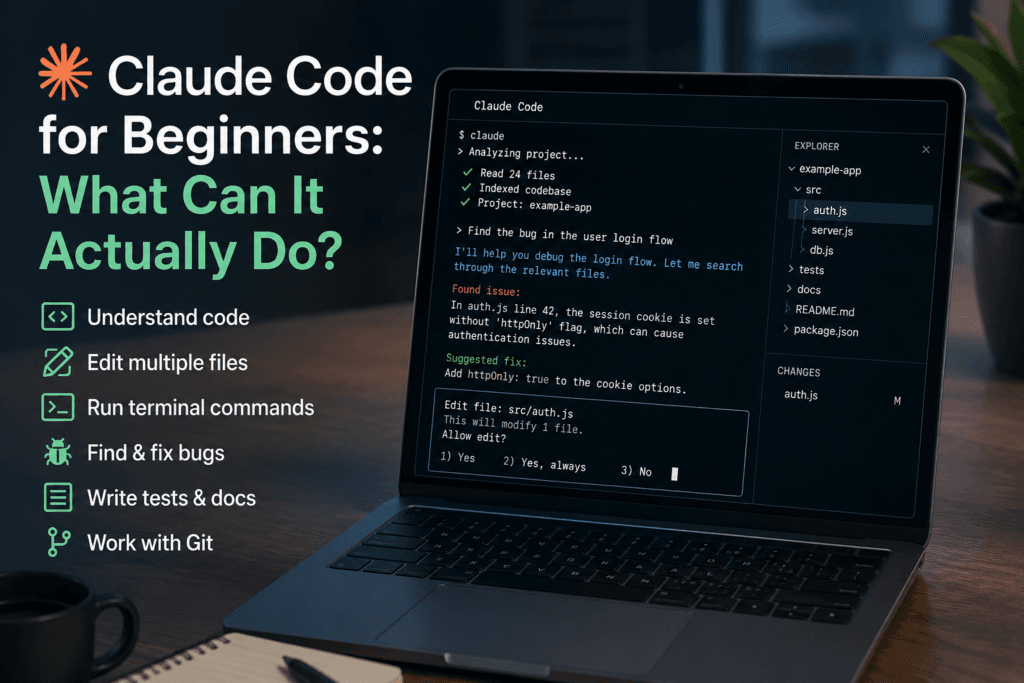
Claude Code is Anthropic’s AI coding agent. It can inspect a project, explain unfamiliar code, edit multiple files, run terminal commands, test changes, and help fix errors.
Unlike a normal chatbot, Claude Code works directly inside a development environment. It is available through the terminal, supported IDEs, Anthropic’s desktop application, and the browser.
It can save time, but it should not be allowed to edit or run commands without supervision.
What can Claude Code do?
Claude Code can:
- Read and explain an existing codebase
- Find where a feature is implemented
- Fix bugs across several files
- Add new functions or components
- Run tests and analyze failures
- Refactor repeated or poorly structured code
- Create documentation
- Work with Git changes
- Execute approved terminal commands
For example, you could open a website project and ask:
Find why the contact form is not sending messages. Explain the cause before changing anything.
Claude Code can search through the files, identify the relevant code, suggest a fix, and request permission before making changes.
How is it different from ordinary Claude chat?
Ordinary Claude chat mainly works with the text and files you provide.
Claude Code can actively work inside a project. It can inspect folders, modify files, run tools, and continue across multiple steps.
This makes it more useful for real development work, but also more dangerous. A poor instruction or incorrectly approved command could break the project or delete data.
Read also : How to Use NotebookLM With PDFs: A Practical Guide
What do beginners need?
You should have:
- A computer running Windows, macOS, Linux, or WSL
- A Claude subscription or Anthropic Console account
- A code project
- Basic terminal knowledge
- Git or another backup method
Anthropic supports installation through native installers, Homebrew and WinGet. The current native commands include:
macOS, Linux or WSL
curl -fsSL https://claude.ai/install.sh | bashWindows PowerShell
irm https://claude.ai/install.ps1 | iexAfter installation, open the project folder and run:
claudeClaude Code then opens a browser login flow. Individual users can sign in through supported Claude plans, while teams can use Enterprise, Console or supported cloud-provider authentication.
A safe first task
Do not begin by asking Claude Code to rebuild the entire application.
Start with a read-only request:
Review this project and explain its folder structure. Do not edit files or run commands.
Then try:
Find the code responsible for the navigation menu and explain how it works.
Only after you understand its response should you request a small change:
Add a link to the About page. Show me the planned changes before editing anything.
After the edit:
- Review the changed files.
- Run the application.
- Run the tests.
- Check the Git diff.
- Undo the changes if the result is wrong.
Does Claude Code ask permission?
Claude Code uses read-only permissions by default. It normally asks before editing files, running tests, or executing commands that can modify the system.
It can also use sandboxing to restrict file and network access. However, users can approve commands permanently or enable more autonomous modes.
Beginners should avoid broad automatic permissions.
Before approving a command, check whether it:
- Deletes or replaces files
- Installs software
- Connects to an external service
- Changes a database
- Uses credentials
- Runs with administrator access
- Modifies files outside the project
Anthropic states that users remain responsible for reviewing proposed code and commands.
What does Claude Code do well?
Claude Code is useful for:
- Understanding unfamiliar projects
- Locating code across many files
- Fixing clearly defined bugs
- Writing routine tests
- Refactoring repeated code
- Automating simple development tasks
- Explaining terminal errors
It is particularly helpful when a task requires coordinated changes across several files.
What does it do poorly?
Claude Code can still:
- Misunderstand the project architecture
- Introduce new bugs
- Remove necessary behavior
- Write insecure code
- Use outdated libraries
- Produce tests that do not test the right behavior
- Run an unnecessary or risky command if approved
It also performs worse when the project has poor documentation, broken tests, unclear requirements, or unusual internal systems.
How much does Claude Code cost?
Claude Code can be accessed through eligible Claude subscriptions, team plans, the Anthropic Console or supported cloud providers. API-based usage is charged according to model and token consumption.
Anthropic reports that enterprise usage varies considerably, with published averages around $13 per active developer day and approximately $150–$250 per developer per month. These figures are not guaranteed costs for individual users.
Beginners should set spending limits when using API billing and check usage regularly.
Privacy and security
Claude Code may send project content to Anthropic’s services so the model can analyze it.
Do not use it with:
- Passwords or API keys stored in files
- Confidential customer information
- Private company repositories without approval
- Production databases
- Regulated or sensitive data
Consumer users can control whether their data may be used to improve Anthropic’s models. Commercial and enterprise usage follows different data terms.
Remove secrets from the project and check your organization’s AI policy before use.
Who should use Claude Code?
Claude Code is suitable for:
- Developers working on existing projects
- Beginners who already understand basic coding
- Teams with Git, testing and code-review processes
- Users who want help navigating large repositories
It is not a good choice for someone who cannot review the generated changes or understand the commands being approved.
Read also: How to Use ChatGPT: A Beginner’s Guide
Final recommendation
Claude Code can do more than generate code. It can inspect, edit and test an entire project, which makes it useful for real development work.
Beginners should use it as a supervised assistant:
- Ask it to explain before editing.
- Keep the project under Git.
- Approve commands individually.
- Review every change.
- Test before publishing.
It can speed up development, but it does not remove the need to understand the code



Pingback: Gemini Spark Explained: What Can Google’s AI Agent Do?
Pingback: How to Use ChatGPT: A Beginner’s Guide
Pingback: Claude Text Watermark: Can AI-Written Text Be Detected?
Pingback: AI Cyberattacks in 2026: 7 Ways to Protect Yourself
Pingback: Why Anthropic Wants AI Development to Slow Down